Link
https://awetton.itch.io/clicker-clicker
Overview
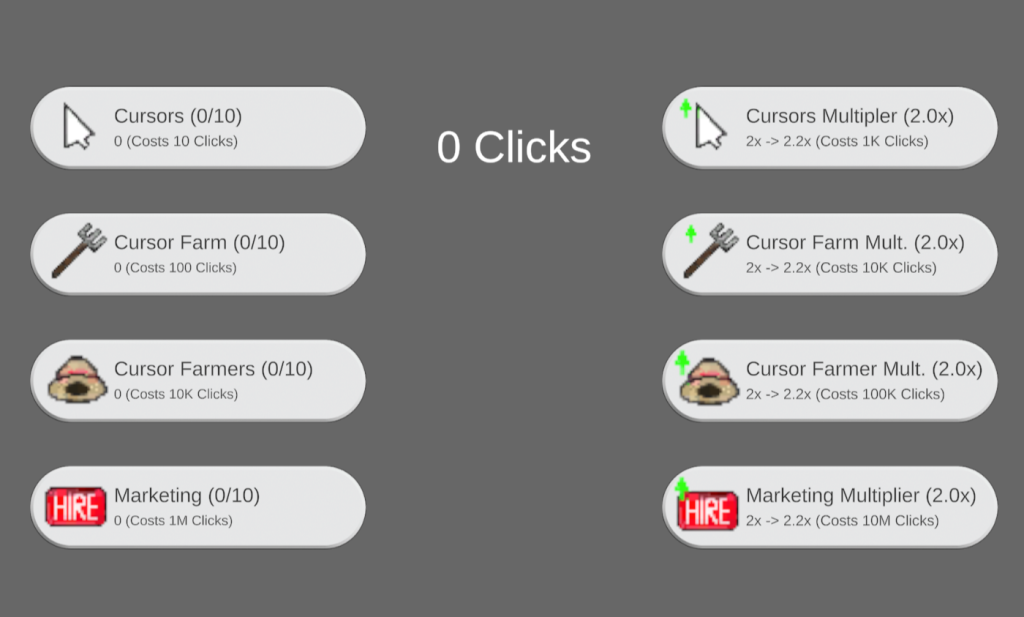
For my clicker game, I went in a different direction from the regular cookie-clicker-style idle game, instead basing it on the system used in a game called Antimatter Dimensions. Instead of simply buying an upgrade that increases your cookies, to afford the next upgrade to give more cookies, my game uses a more hierarchical upgrade style. The first level of upgrades – cursors – produce “clicks” (the game’s version of cookies), but the next level, instead of producing a higher number of clicks, instead produces cursors.
The other main change is the way pricing works. The price of an upgrade does not increase every time you buy that upgrade. Instead, it counts up to 10, and once the 10th upgrade of that type has been bought, the price increases, and the amount that upgrade produces is doubled (for example, once you buy 10 total cursors, they will become 100x more expensive, and will now each produce 2 clicks per second, instead of 1). There are also upgrades that can be purchased to increase the multiplier for buying 10 of an upgrade by 0.2 at a time (e.g. buying the upgrade for cursors once will mean that for every 10 cursors you buy, the amount of clicks they produce will be multiplied by 2.2x instead of 2x).
Click Detection
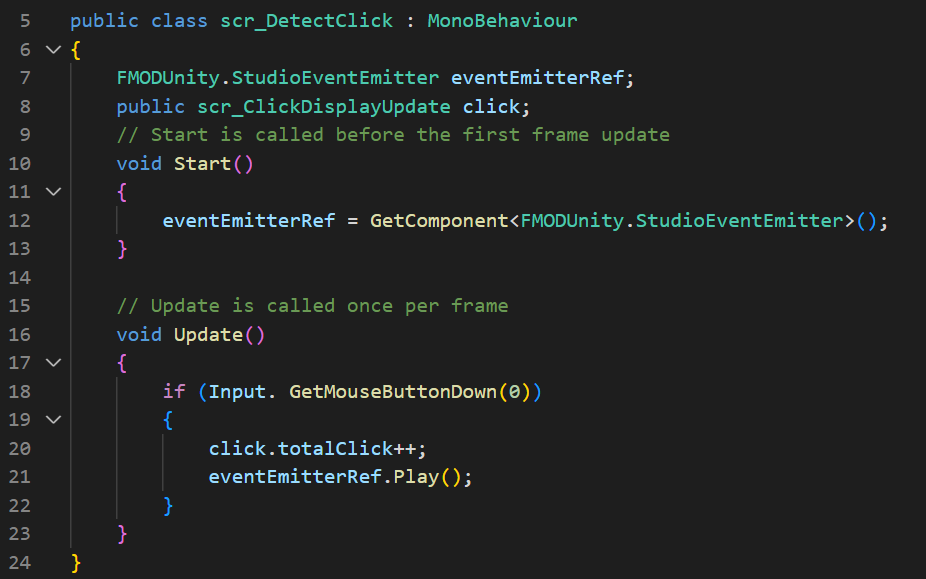
Instead of clicking on a specific object to generate clicks, instead 1 click is produced every time the player clicks anywhere, playing a sound whenever this happens. The player’s clicks quickly become irrelevant as the automated production increases quite rapidly and there are no upgrades to generate more clicks per click. The script checks constantly for if the left mouse button (signified by the 0 in “GetMouseButtonDown(0)” on line 18) is pressed, and if so, increases the player’s total number of clicks – stored in an float variable in the script to display clicks (next section) – by 1.
Displaying Clicks

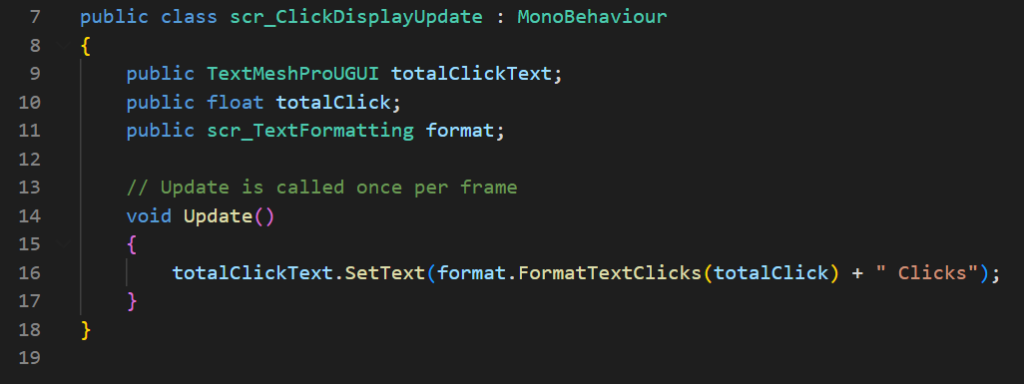
The script for displaying clicks is simple – it simply updates the Text Mesh every game update with the new value of clicks after formatting it through the text formatting script (discussed in the next section).
Text Formatting

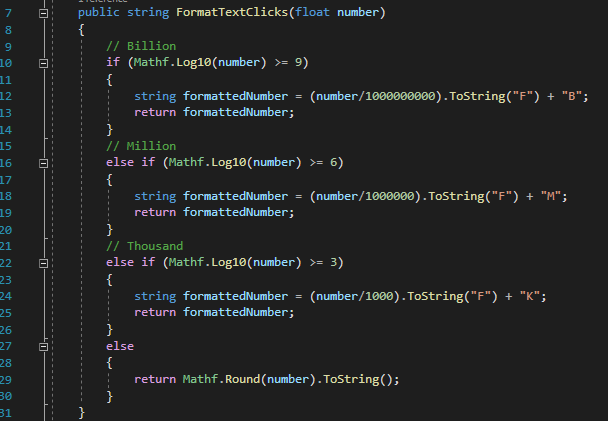
As the numbers in the game get quite high quite quickly, I decided to add a way to format the text. Instead of showing longer and longer numbers (e.g. 1000000 for 1 million), I made a script that would shorten these to a smaller number followed by a letter to represent the power (K for thousands, M for millions, etc.). Each function in the script would take an inputted float value, pass it through the log10 function, and see which multiple of 3 the value fell above. For example, if the number 3,000,000 was inputted, it would first check if 3,000,000 log 10 was greater than or equal to 9, which would return false (3,000,000 log 10 = 6). It would then check if the number log 10 is greater than or equal to 6 – in this case, this would return true, and the program would continue with the nested code. The number is divided by 10^x, where x is the value checked by the logarithm (in this case, 10^6, or 1 million). The result is turned into a string, and a letter is added on to represent the size of the number (as previously mentioned – K for thousands, M for millions, B for billions). The code only formats up to the billions, as the game is just a prototype, meaning the likelihood of numbers much higher than that being reached is low – but the function’s logic could be expanded to much higher values very simply.
There are 3 separate functions within the script, each formatting the outputted string slightly differently. The first, “FormatTextClicks”, returns the integer value of the number for values below 1000, and then displays any higher values to two decimal places. This felt like the best way to display the player’s total clicks, as the decimal places on higher values give more visual feedback showing click production. The second function, “FormatText0DP”, simply returns the value with no decimal places. This is used for displaying the prices of upgrades, as well as the number of each upgrade the player has, as the decimal places are unnecessary for these. The final function, “FormatTextProd”, is used to show the amount each upgrade is producing, and displays the number rounded to 1 decimal place.
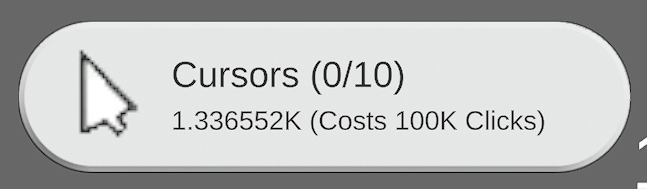
This script does seem to have some flaws – particularly, the 0DP version does not seem to correctly display upon reaching higher values. This, along with increasing the maximum value that can be formatted in the script, is something that I could work on to take the project further.
Buying Upgrades
The scripts to buy upgrades are effectively the same, with the only difference being which type of upgrade it increases, and the values of the prices and how much they increase by.

A lot of variables are created at the start of these scripts. The first 3 are references to other scripts that are needed to either edit variables from, or call functions from. The three TextMeshProUGUI variables are used to edit text on the UI, and the various float variables have different uses throughout the script, and will be mentioned more as they show up.
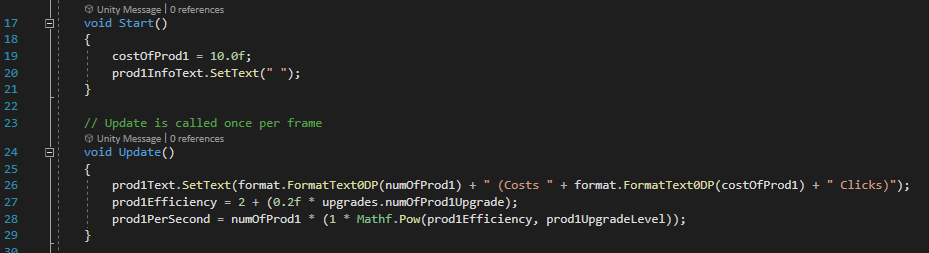
The update function first sets the text on the button to buy the upgrade, displaying the cost of the upgrade (format.FormatText0DP(costOfProd, as well as the number of the upgrade that the player owns (format.FormatText0DP(numOfProd1)). Then, it calculates the Efficiency of the upgrade – equal to:
2 + (0.2f * the number of multiplier upgrades purchased)
For example, at the beginning of the game, this value is 2, as no multiplier upgrades have been purchased. After one is purchased, the value becomes 2.2, then 2.4 with two purchased, and so on. This value is then used in the next line, which calculates the amount that the upgrade will produce each second. This is equal to:
The number of the upgrade owned * (1 * (the efficiency ^ the upgrade’s level))
The efficiency is calculated by the previous equation, and the upgrade’s level is equal to the number of times that the player has bought 10 of that specific upgrade, plus 1, as it starts at level 1 (after buying 10 of an upgrade, the upgrade is level 2. Another 10 increases it to level 3, etc.). The value being multiplied by 1 has no specific effect, and could most likely be removed.
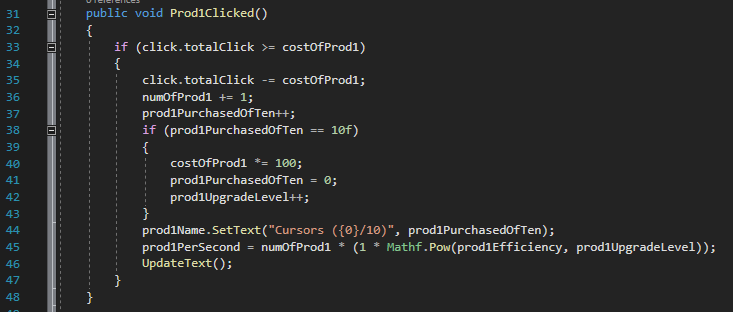
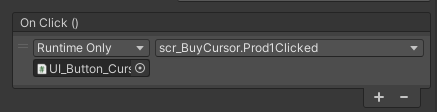
The next function is used to buy more of an upgrade. It is assigned through Unity’s built-in UI system to be called whenever the button is clicked. First, it checks whether or not the total number of clicks the player currently has is greater than or equal to the price of the upgrade. If it is not, then the function ends there. If it is, then it proceeds to purchase the upgrade.
First, the price of the upgrade is deducted from the total number of clicks. Then, both the number of the upgrade and the amount purchased out of 10 are increased by one. If the amount purchased out of 10 is increased to 10 by this, then the cost is multiplied by a set value (in this case, 100 for the first upgrade), the amount purchased out of 10 is reset to 0, and the upgrade’s level is increased by one. Then, the text on the button is updated to show the new number purchased out of 10, the production per second is updated to the new values (which is mostly unnecessary, as the amount is updated every frame – however, it ensures that when the text is updated, it displays the correct amount), and the “UpdateText” function is called to display the details of the upgrade at the bottom middle of the screen.
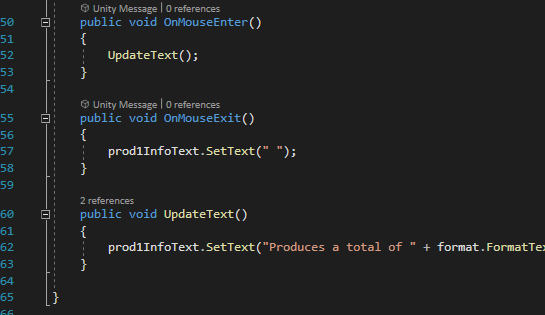
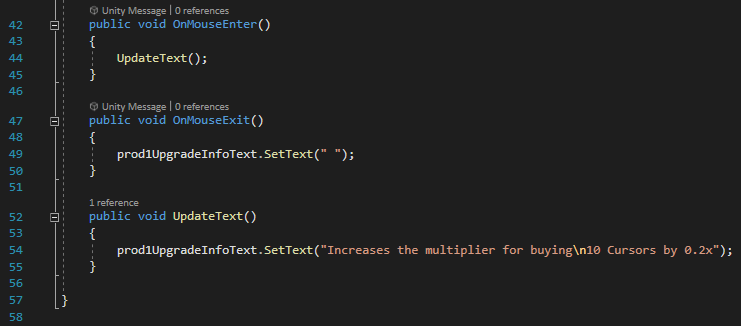
The “OnMouseEnter” and “OnMouseExit” functions are assigned, similarly to the “Prod1Clicked” function, to built-in systems for Unity’s UI buttons, meaning they automatically get called when the cursor hovers over the button, or when it stops hovering over it. These are used to edit a Text Mesh at the bottom middle of the screen, which is changed to display information about the respective upgrade that is hovered over. However, there is an issue where hovering over the text on the button does not seem to count as hovering over the button, leaving only a small amount of space on the button that will actually show the information. I could not find any way to fix this, but it would need to be addressed if the project was taken any further as it is quite inconvenient to the user’s experience.
Upgrade Auto Generation
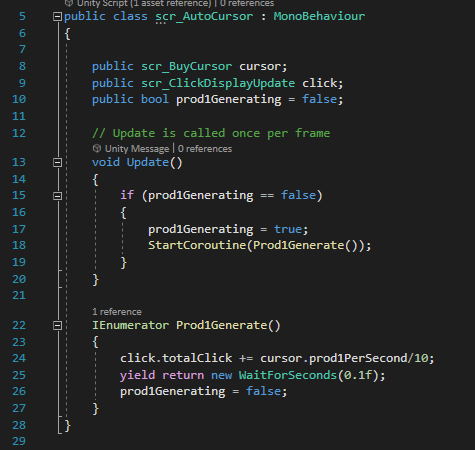
Like the script for buying upgrades, the auto generating script is practically identical for each ugprade. The main difference is what is being generated – the script shown is for cursors, the lowest level upgrade, and so it generates clicks – but the higher level upgrades instead produce the upgrade one level below them. The two scripts required are the script for purchasing the current upgrade, as well as the script for the upgrade below (or in this case, the script containing the total number of clicks).
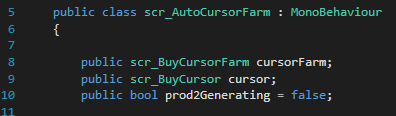
The script uses a coroutine to be able to constantly run alongside various other scripts and functions without impacting what the user is doing. Every frame, it checks if the boolean variable “Prod1Generating” is set to false. If it is, that means the coroutine is not currently running, so it sets the variable to true, then starts the “Prod1Generate” coroutine. The coroutine then increases the number of the relevant variable (number of upgrades or total number of clicks) by the amount the current upgrade produces per second, divided by 10, and waits 0.1 seconds before setting the “Prod1Generating” boolean back to false, allowing it to be called again the next frame. By increasing the value by a tenth every 0.1 seconds instead of the full value every second, it makes the displayed value increase more quickly and constantly, instead of jumping up each second, which is nicer for the player to view.
Upgrading Upgrades
The final type of script in the game is the ability to increase the multiplier for buying 10 of an upgrade.
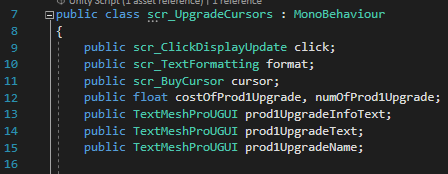
Once again, this script uses 3 Text Meshes to display text on the button, as well as when the button is hovered over with the cursor. It also interacts with three other scripts – the click display update and text formatting scripts, as usual, as well as the purchase upgrade script for the relevant upgrade, and has two float variables – one for the cost of the upgrade, and another for the number of times it has been purchased.

Like the Buy Upgrade scripts, the upgrade cost is set at the start of the script, as well as making sure the info text (the text displayed at the bottom of the screen when hovering over the button) is empty, and the button’s text is updated every frame to show the correct values. This is simply done by showing the current efficiency of the relevant upgrade, followed by that value increased by 0.2 to show what the value will increase to when the upgrade is purchased.
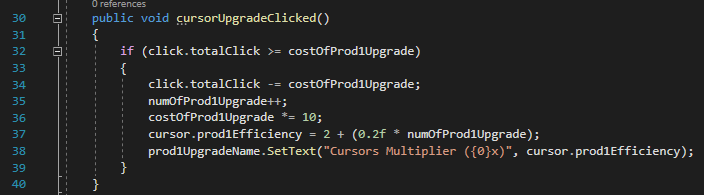
Again, like the Buy Upgrade script, when the button is clicked, it first checks that the player has more clicks than the upgrade costs, and if so, removes that many from their clicks, increases the number of upgrades purchased by 1, multiplies the price by a set amount, and recalculates the efficiency of the upgrade that has been increased. It then edits the text on the button to display the new multiplier amount.