In the third week, we looked at augmented reality (AR) – while VR replaces the world around you with a different, virtual world, AR places virtual elements over the top of reality. The most well known example of this is Pokemon Go, where the Pokemon could be overlayed onto the camera, as if they were appearing in the real world.
One very important factor of augmented reality, especially more advanced forms, is making it seem more realistic by having the virtual objects fit into the environment. This is called occlusion – being able to hide the objects behind real things. Without it, the virtual objects would simply appear in front of everything else.
Other uses of AR technology could include medical training, by being able to view a human body in a 3D, more realistic environment; maintenance, where experts can view things without having to physically be there to try to diagnose issues; or interior design, by being able to view possible changes to a space and get an idea of what things could look like in advance.
There are various different ways of setting up augmented reality. One option is using Light Detection and Ranging (LIDAR) to view the environment, which can help with occlusion by detecting depth. A simpler way is marker-based AR. This uses an image as a marker, which acts as a reference point for the virtual object’s location.
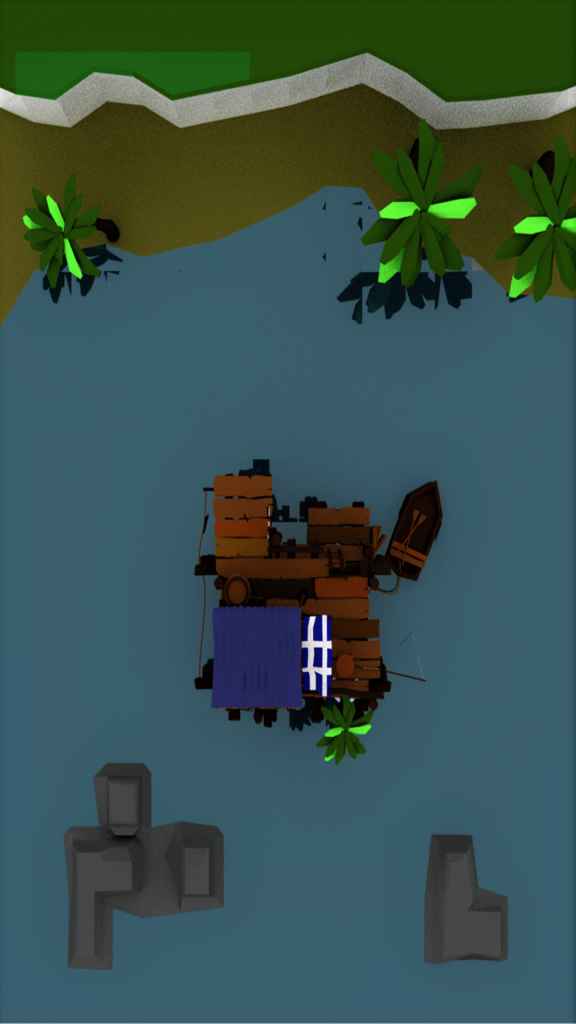
In the workshop, we looked at an AR platform called ZapWorks, which, in combination with Unity, can be used to create marker based AR experiences. It is activated by scanning a QR code, which takes the user to a special camera. When that camera detects the specified image, it will display the 3d object linked to that image.
I decided to use the provided image and model to try out ZapWorks. To make it work, I had to add the Zappar addon to Unity. This allowed me to add a Zappar Camera and a Zappar Image Tracking Target. The image marker was added to the Image Tracking Target, and the model was placed into the scene and set to inactive. In the Image Tracking Target, I set the model to be activated on Seen event, and disactivated on Not Seen event.
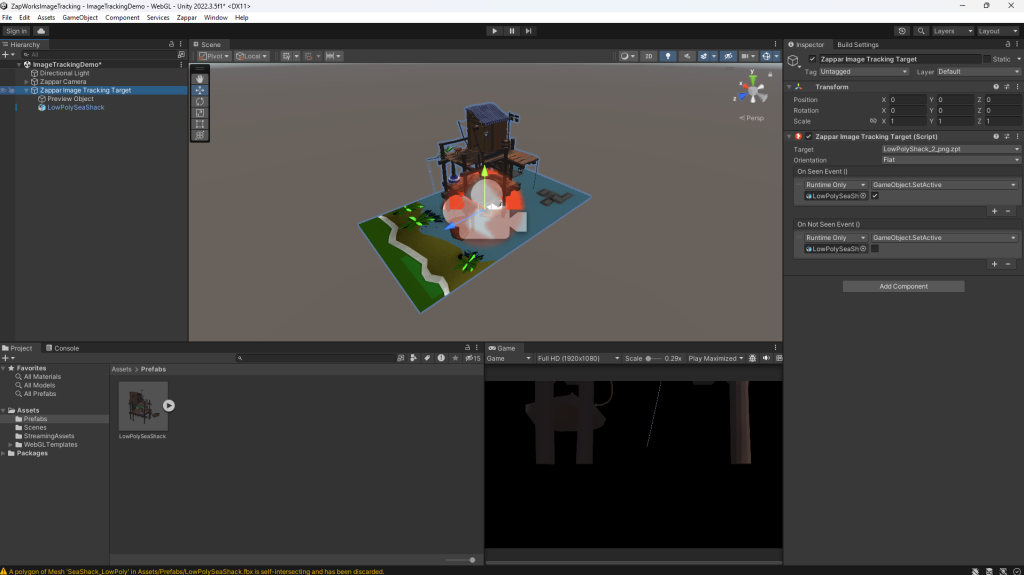
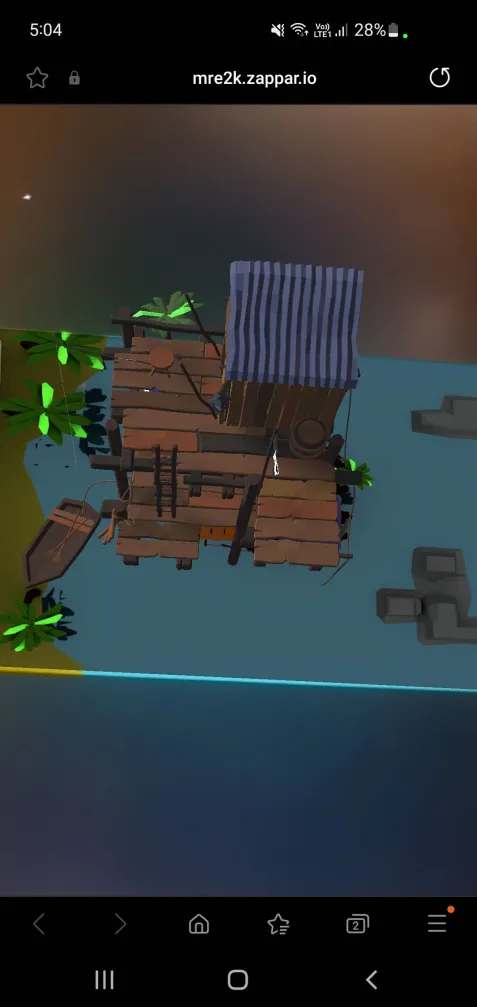
Once the Unity project is built and uploaded to ZapWorks, a QR code is provided. When scanned, it leads to a website with an AR camera. When the camera sees the provided image, it will display the 3D model over it, in the position it was placed in the Unity project.

Overall, I find the idea of using AR quite interesting – I feel like there are a few different ways I could take this further, and am interested in exploring the different uses.