In the third week, we looked at augmented reality (AR) – while VR replaces the world around you with a different, virtual world, AR places virtual elements over the top of reality. The most well known example of this is Pokemon Go, where the Pokemon could be overlayed onto the camera, as if they were appearing in the real world.
One very important factor of augmented reality, especially more advanced forms, is making it seem more realistic by having the virtual objects fit into the environment. This is called occlusion – being able to hide the objects behind real things. Without it, the virtual objects would simply appear in front of everything else.
Other uses of AR technology could include medical training, by being able to view a human body in a 3D, more realistic environment; maintenance, where experts can view things without having to physically be there to try to diagnose issues; or interior design, by being able to view possible changes to a space and get an idea of what things could look like in advance.
There are various different ways of setting up augmented reality. One option is using Light Detection and Ranging (LIDAR) to view the environment, which can help with occlusion by detecting depth. A simpler way is marker-based AR. This uses an image as a marker, which acts as a reference point for the virtual object’s location.
In the workshop, we looked at an AR platform called ZapWorks, which, in combination with Unity, can be used to create marker based AR experiences. It is activated by scanning a QR code, which takes the user to a special camera. When that camera detects the specified image, it will display the 3d object linked to that image.
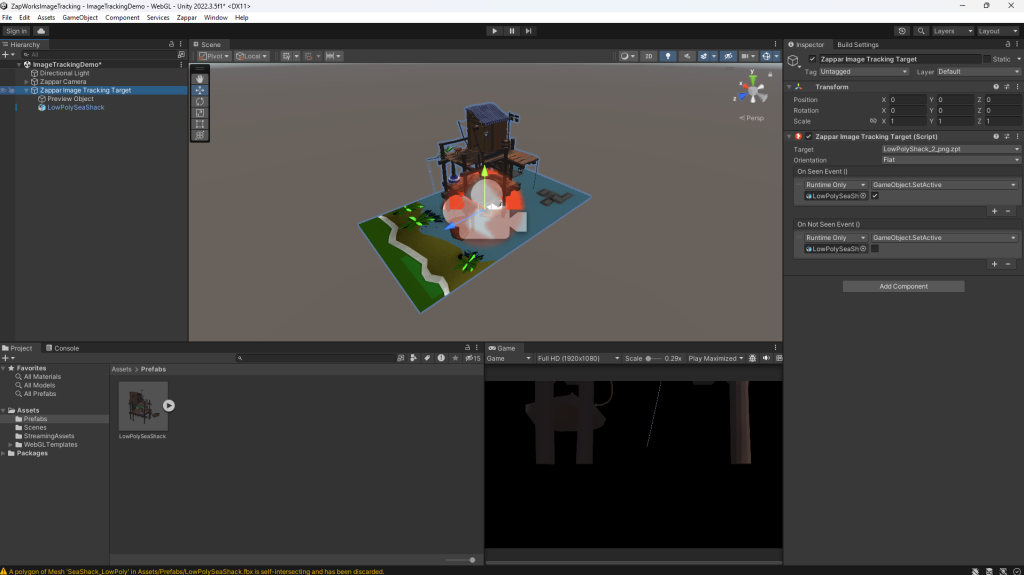
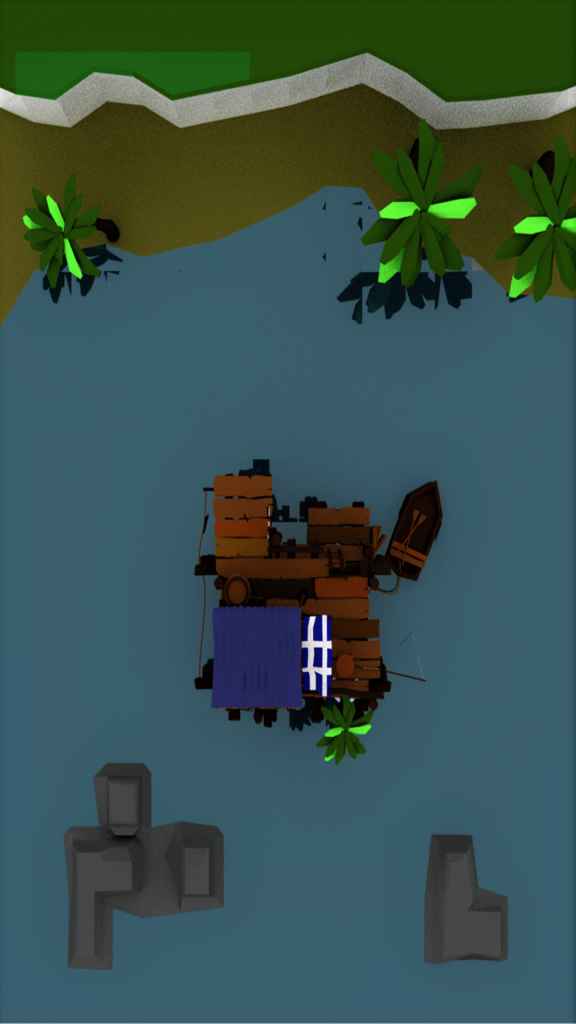
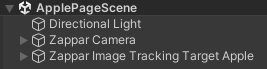
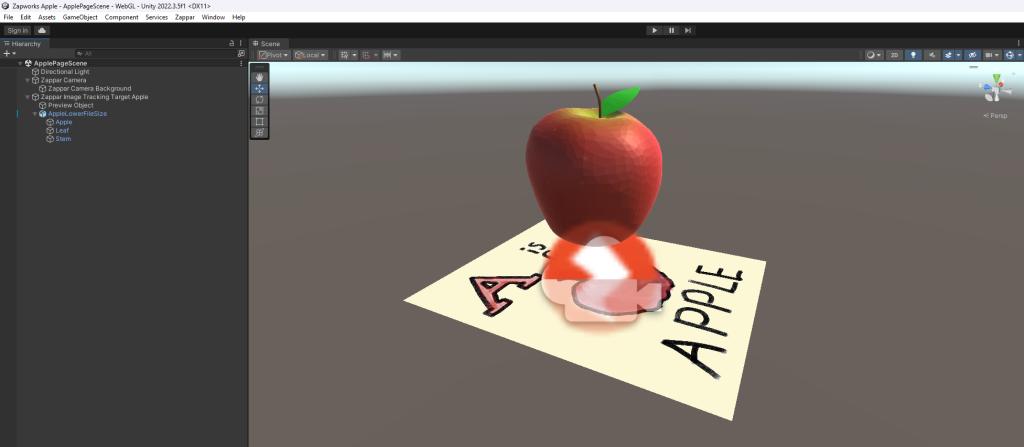
I decided to use the provided image and model to try out ZapWorks. To make it work, I had to add the Zappar addon to Unity. This allowed me to add a Zappar Camera and a Zappar Image Tracking Target. The image marker was added to the Image Tracking Target, and the model was placed into the scene and set to inactive. In the Image Tracking Target, I set the model to be activated on Seen event, and disactivated on Not Seen event.
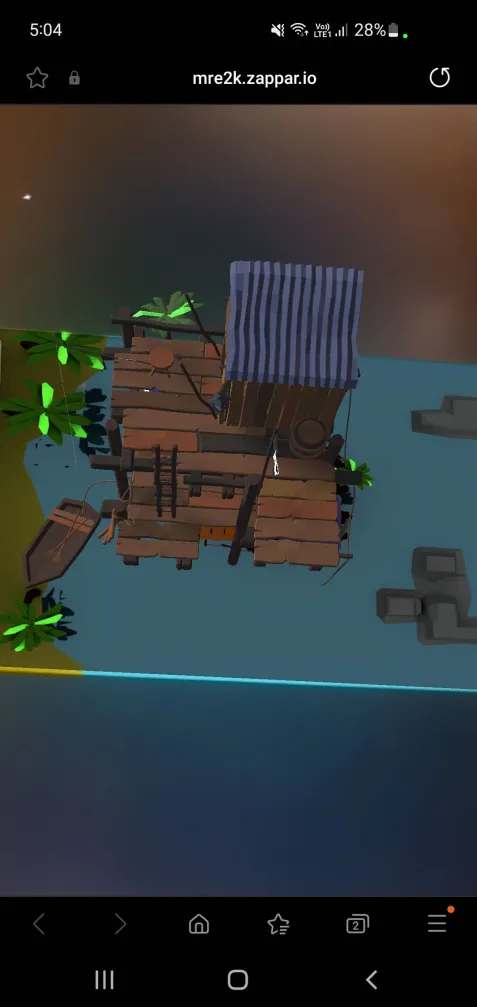
Once the Unity project is built and uploaded to ZapWorks, a QR code is provided. When scanned, it leads to a website with an AR camera. When the camera sees the provided image, it will display the 3D model over it, in the position it was placed in the Unity project.
Overall, I find the idea of using AR quite interesting – I feel like there are a few different ways I could take this further, and am interested in exploring the different uses.
This week, we looked at the uses of virtual reality technology in creating art. We focused on looking at and trying out four different softwares. Unfortunately, due to some issues with the headsets, as well as feeling nauseous, I did not get to spend much time in virtual reality myself, so I focused on watching the others and considering the uses of the different softwares.
The first software we used was Open Brush. It allows you to use the VR controls to paint in 3D space. It seemed very easy to use, while providing a lot of use in being able to quickly sketch out and design 3D environments.
Next was Gravity Sketch. This allows for quick sculpting in VR, with various features allowing for collaboration between different people and teams. This seems quite effective for making models in VR, and could have a few unique advantages over regular 3D modelling once the user adjusts to the different environment.
ShapesXR is a tool that can be used to block out 3D environments and areas. Similar to Open Brush, it is useful for creating a quick design for a 3D environment, to help visualise and try out different ideas and elements.
Finally, the last software was Adobe Aero. This is a software that is designed to create AR technology, with a focus on mobile platforms. I did not get to see much of this software, but it seemed very interesting to try out.
While virtual reality art is very unique and offers a lot of different ways of using it, I didn’t think I could take it very far in a project, especially considering I struggled with nausea after only briefly trying the VR headsets. If I was more used to being in VR, it would be more interesting of an option to me.
After looking at the different ideas and options over the last few weeks, I decided that I wanted to do my project using Augmented Reality. I found it the most interesting of the options, and had a few ideas that I felt would be suitable for my project.
Augmented Reality Research
To begin researching, I wanted to look at various different kinds of AR technology, and how they are used, as I felt this could inspire my own project.
The main kind of AR technology I looked into was marker based AR, as the website for using AR that we looked into during the module used this form of AR. For marker based AR, the augmented object is activated when the user scans a designated “marker”, such as an image or pattern that is distinct and can be recognised by the camera. This is quite a stable and reliable form of AR, which gives it a higher level of quality than some other kinds, but it requires the camera to look at the specific marker, which can be quite restrictive in various situations.
Markerless AR, on the other hand, does not require a marker, and simply places the virtual object into the real world. Often, when used, the software will ask the user to find a flat surface to display the model on, to make it slightly more grounded and fit better into the space. A good example of markerless AR is Pokemon GO, which displays a virtual pokemon overlayed on the camera to make it appear like it is in the world.
Concept
The idea I want to work on for my project is a proof of concept of an augmented reality picture book for children. By scanning a QR code at the start of the book, the camera can then be used to scan various images in the book, and create a 3D virtual object over them.
I felt like this would be a very interesting application of AR technology. As the picture book is for children, the goal is to try to create something quite colourful and appealing, in order to engage and entertain them. This is something that is easily achievable with a regular picture book, but I believe that by adding AR, it will enhance these ideas, while also making it even more engaging by adding interactivity. The marker based AR system I plan to use will be effective for this, as it provides a stable view of the model, and the limitations will not cause problems as the markers will be built in to the picture book.
Another option would be to try to create something using VR, which would be even more interactive and perhaps make it more exciting to use. However, there are a few reasons why I felt that AR would work better. Firstly, as the product is for younger children, it could be used in an educational setting, where multiple children could view it together. To do this in VR would involve moving a VR headset around to everyone involved, which would be quite time consuming and inconvenient. whereas AR simply needs a single device such as a phone or an iPad, which is much easier to pass between multiple people. Additionally, VR headsets could lead to motion sickness and other issues, which are avoided by AR.
Ethical Considerations
In a product aimed at younger children, there are often ethical considerations to consider. One thing that I felt was important to think about with this project was the effect of exposure to screens on children. Designing a screen-based product or idea for younger audience could lead to an increased dependency and reliance on screens, which may have negative effects on their development and lead to problems later in life.
However, I believe this project will not cause these issues, and that it is overall positive. Firstly, my idea is educational, which will provide benefits to the younger audience. It is also non-addictive, and will only be used for short amounts of time, likely in a group setting. This reduces the negative impacts of exposure to screens, while retaining the positive benefits of increased engagement and interest. It could also help to raise tech literacy among the young children, which is an important skill to develop as technology has become a very large part of modern life, so having a basic knowledge of and ability to use it early could be very helpful.
Ideas and Development
The first idea I had was for a story based on “The Very Hungry Caterpillar.” This would involve having a model for each different food, which would show when that food was scanned with the camera. However, while this did seem interesting, I felt that it would be a little too complicated to create my own original picture book story, especially as a proof of concept. I decided that it would be better for the project if I used a simpler picture book, and focused much more on showing off the AR elements and ideas instead of the book itself.
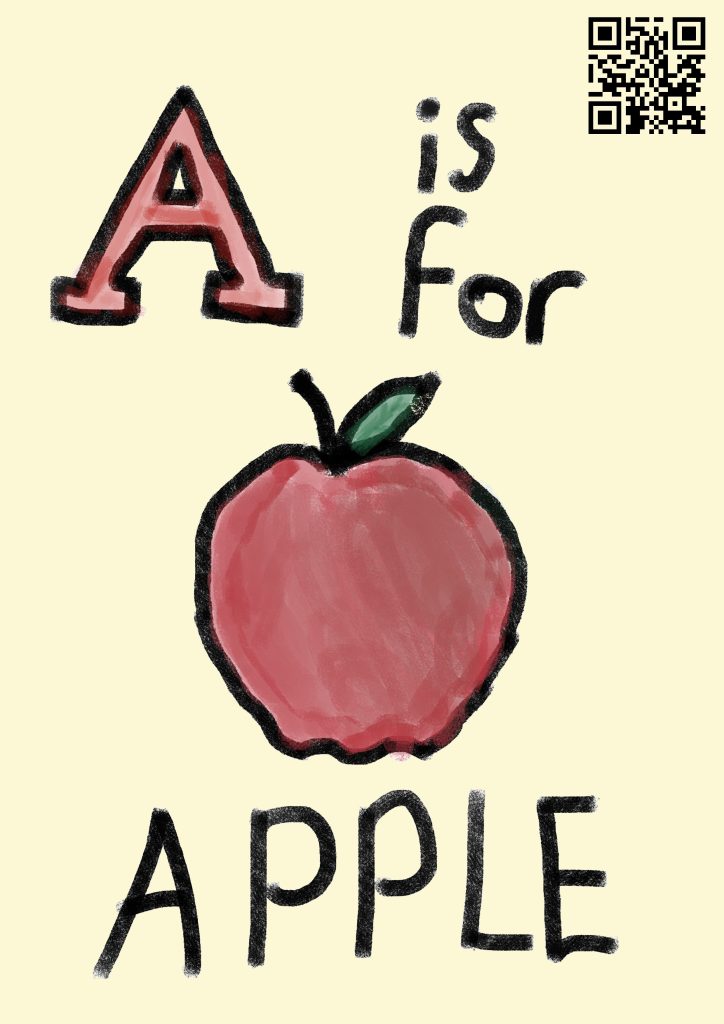
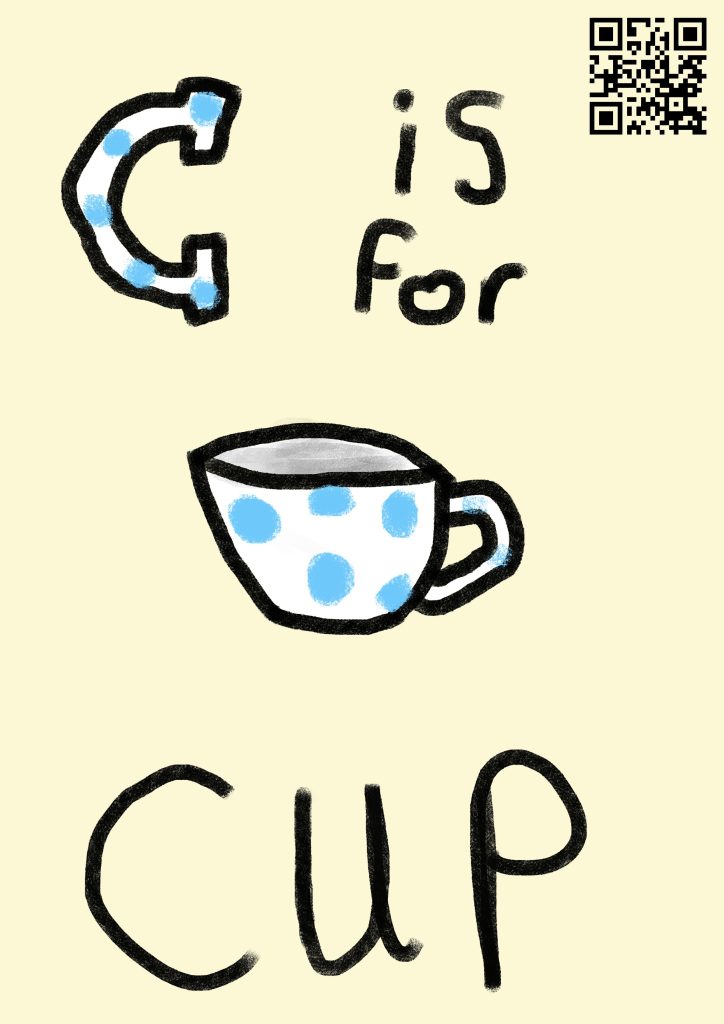
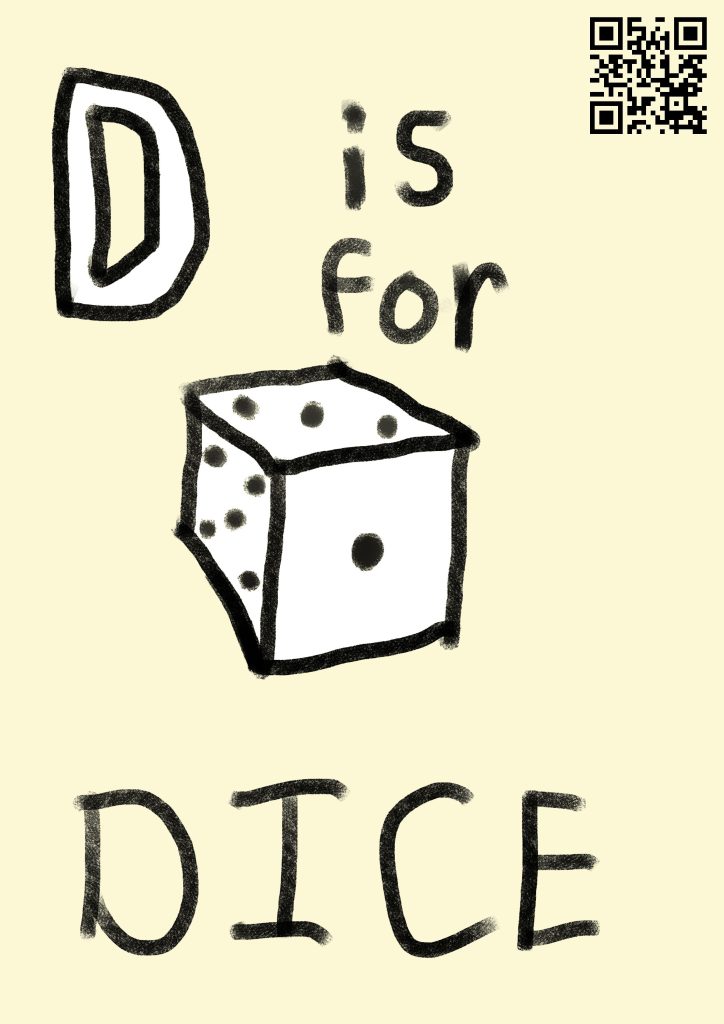
Instead, I decided to do an ABCs style book, where each page has a letter of the alphabet, along with an object that starts with that respective letter – for example, “A is for Apple”. This is quite a common theme for educating younger children on the alphabet, so I knew the concept for the picture book was a functional and reasonable idea to use. This should be a good mixture of an engaging but simple book for younger children, while also showing off the potential of the AR technology and how it can be integrated quite effectively.
The overall goal is to create a product that can help children with literacy through an engaging and fun activity. This should help to make the children more interested in learning, and hopefully improve their retention of the things they read.
As I am trying to make a proof of concept for the idea, I decided that creating a full 26-page book with a page for every letter would be excessive, and likely reduce the quality of each model and page due to the quantity I would need to create. Instead, I felt that by creating just the first 5 pages (A-E), I could get a nice mixture of slightly higher quality models, while still showing enough variety and quantity of pages to make the proof of concept viable and letting me explore its potential.
To begin the planning stage of my project, I first spent some time deciding on what the objects would be for each of the five pages. These needed to be objects starting with the letters A-E respectively, and be both simple enough for younger children to know and understand, while also being interesting and engaging. This could be through colour, unique shape, or being recognisable as something the children might already be familiar with from other similar alphabet learning methods. Another thing I wanted to keep in mind was my own abilities with 3D modelling and drawings. If the objects were too complex, I may struggle to create a compelling 3D model or drawing, and it could lessen the effect of the proof of concept. After some thought, I decided on the following objects for my models:
A is for Apple
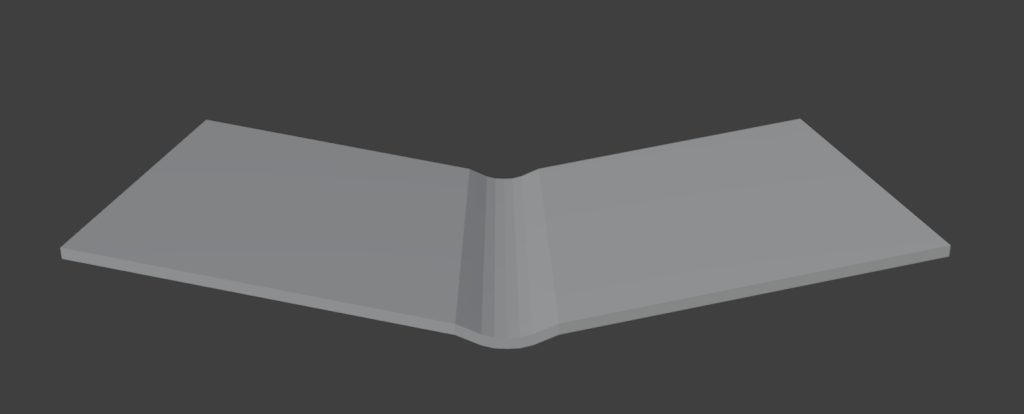
B is for Book
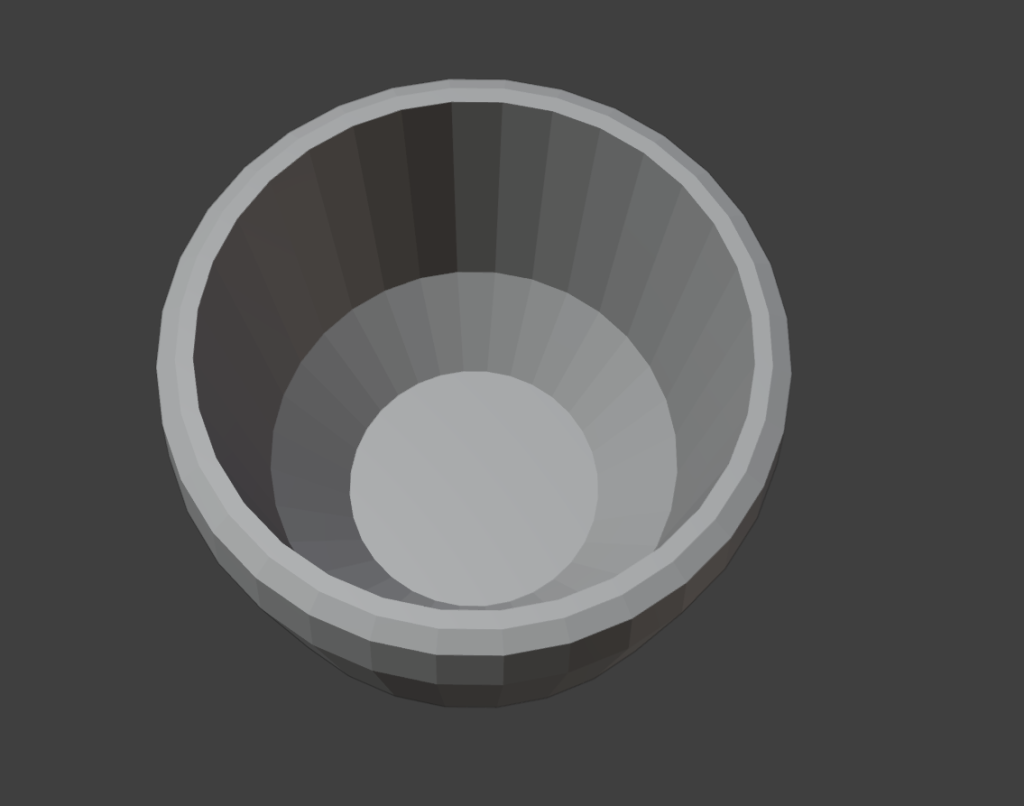
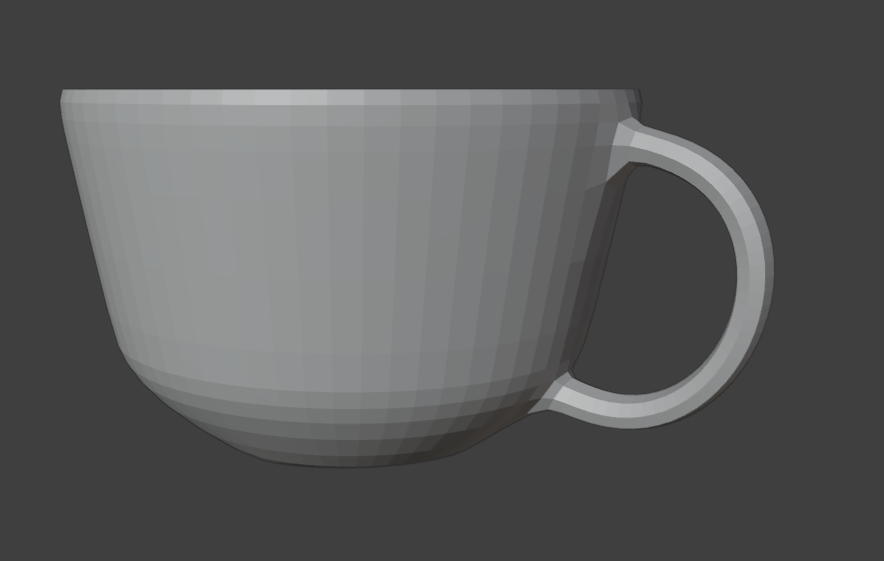
C is for Cup
D is for Dice
E is for Egg
These felt like a good balance between simplicity and interest – they have a mixture of colour, texture, and shape, so the different pages don’t feel too similar, while not being overly complex or confusing for the target audience.
Project Plan
To help with developing the project, I put together a basic project plan, to set out some milestones that I would need to meet. I also considered what I wanted to achieve with each step in terms of the user experience, to create an ideal product.
Planning + Concept Art: Designing how the pages will look, and getting a basic idea of what each model would look like. This could involve finding reference images, creating concept art of the pages, and possibly blocking out the basic shapes of the models. I will make sure that my concept art pays attention to the user’s experiences.
Create Pages: This stage involves creating all 5 of the pages, which will be used as the markers for the AR. These should be colourful and visually engaging, to appeal to the young audience of the project.
Create models: This will likely be the most time consuming section of the project, as the models themselves are the main focus of the project, so I want to take extra time to make sure they are as well crafted as possible.
Texturing models: UV unwrapping and texturing both fall under this category. I expect this to be slightly quicker than drawing the pages, as the textures should not be too complicated for any of the planned objects. As with the pages, I want to make these quite bright and colourful, to create visual interest for the audience.
Creating the AR experience: The final step is to import the models and markers into a Unity project, and upload the result to the ZapWorks website. The process for this is relatively simple, and I can follow the steps that we took during the module to learn about the site and how it works.
My goal is to complete each of these steps within a week, which will give me plenty of time to adapt to any issues or problems that arise during the project.
Basic Concept Art
Before beginning with the proper project, I decided to make some very basic plans and concept art to ensure that the idea would fit the ideas I had in mind, and get a simple idea of what I would need to create during each stage of the project.
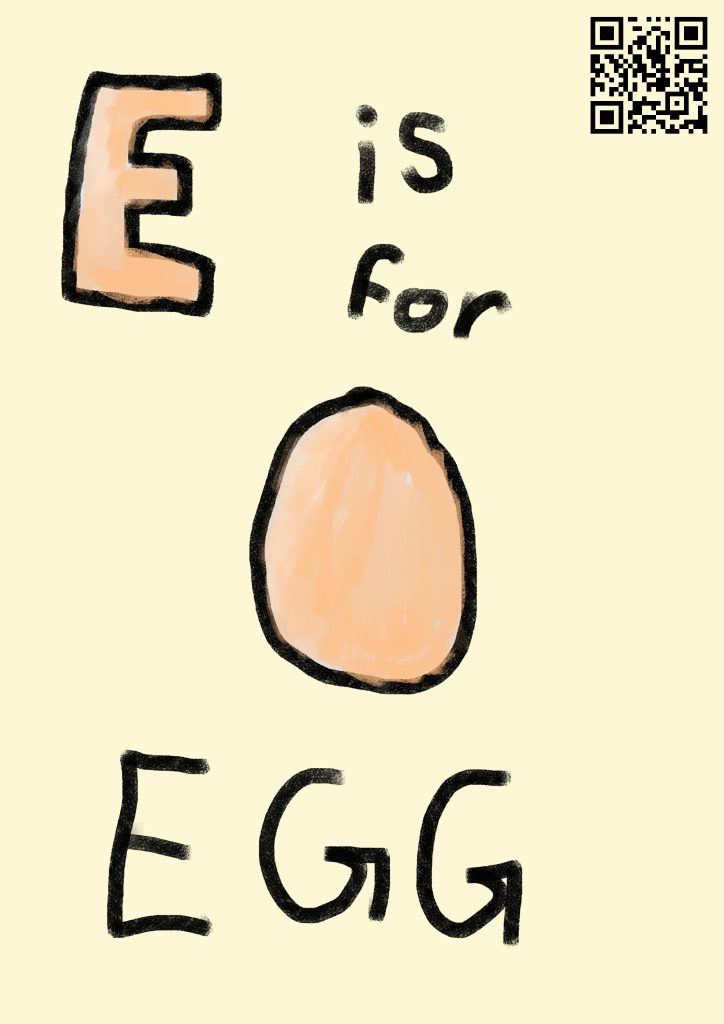
For each object, I will need to create a page of the book, as well as a 3D model of the object. The page will have the text of the letter and object, as well as a picture of the object. When the picture is scanned by the AR camera, it will display the 3D model of the object. Ideally, I will be able to have one QR code at the start of the book, that will be able to display all of the different objects.
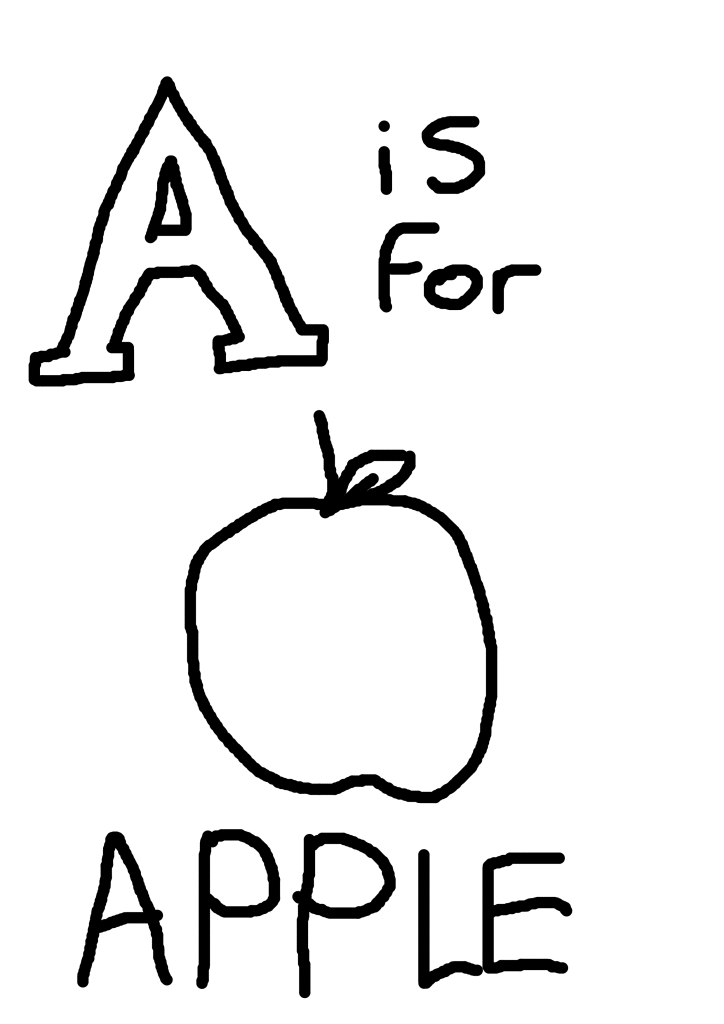
I decided to create a mockup of a page, to figure out the layout and design, as well as get a better idea of how the project would look. I wanted to make sure that the focus of each page was on the letter and the image, by making those the largest things on the page. I also wanted to leave some space for a QR code, as although I want to have a single QR code for the whole project, it may instead be necessary to have one on each page, so having space to put one may be very useful later on in development.
This design seemed like a good place to start. The large and exaggerated letter is the clear focus in the top left that draws attention immediately, followed by the picture in the middle. The text at the bottom is also large and easy to read.
For the first week, we began by looking at the uses of VR in terms of creating narrative and immersive experiences. VR is already much more immersive than many other forms of media, as the user is fully placed into the scenario in their own perspective, which grants a lot of opportunities for interesting uses and ideas – however, it also introduces a lot of challenges in creating VR experiences. For example, the ability to have full control of your camera and view at all times means that you have to take much more time and effort to ensure that any scene works well when viewed from whatever angle the user chooses – this involves a lot of work for lighting and set design, for instance.
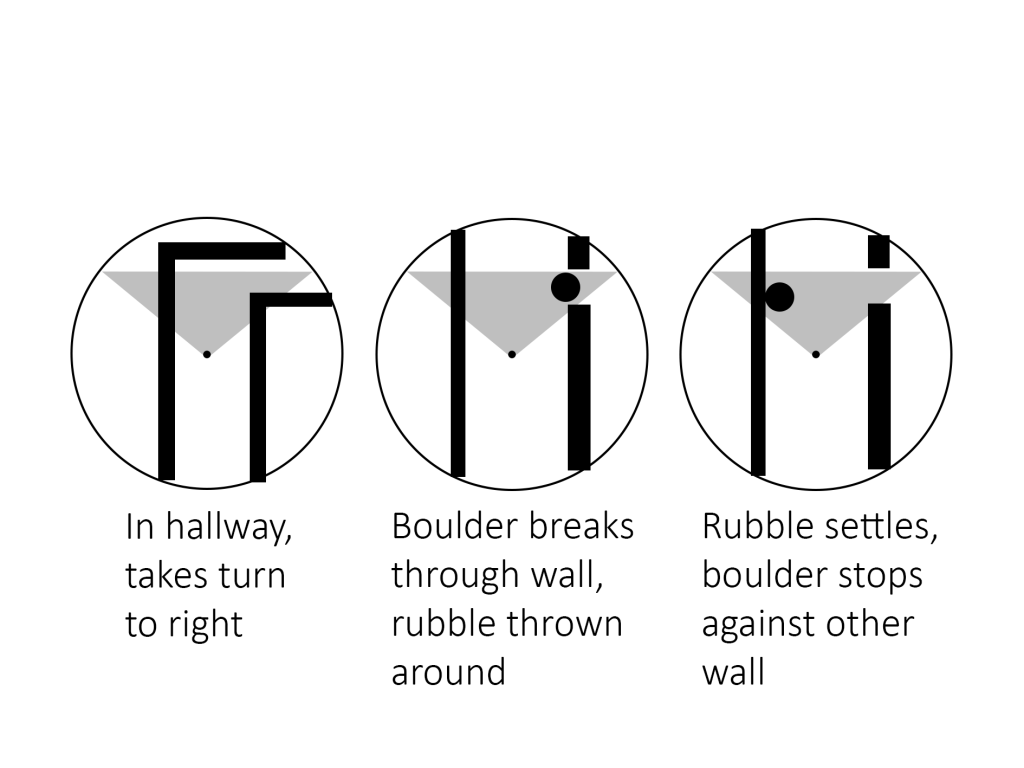
The first project was to create a moving 3D scene in Maya, using a VR camera so the viewer could look around wherever they want. The scene I wanted to create was an Indiana Jones inspired temple scene, where the camera would walk through a small hallway, before a boulder crashes through a wall ahead of them. For the wall breaking, I would use a Maya plug-in called MASH, which allows for procedural animations to be quickly generated to save a lot of time on animating.
I started by creating a basic storyboard to show the layout and idea for the scene.
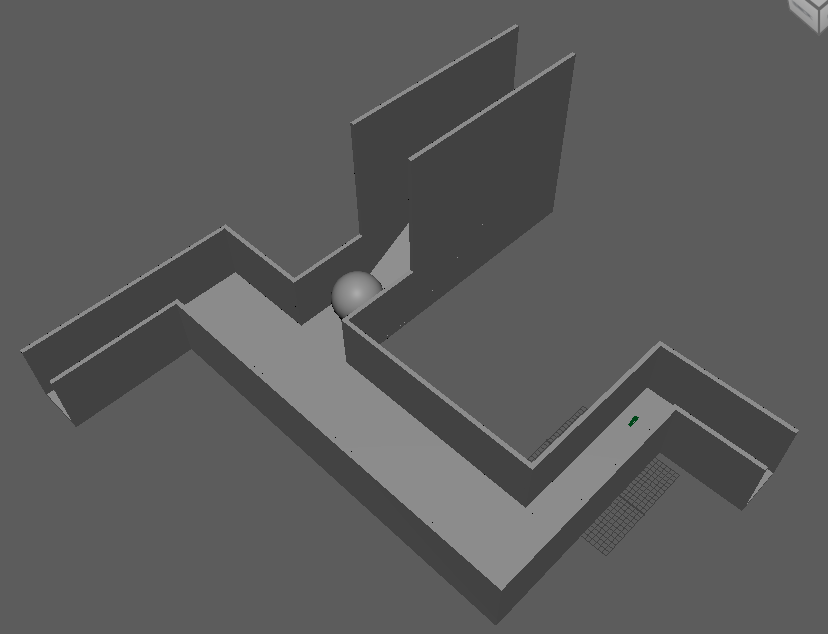
Next, I created the blockout shapes of the tunnel and ball. I added a roof, but disabled it while working so I could work on the animation inside before re-enabling it.
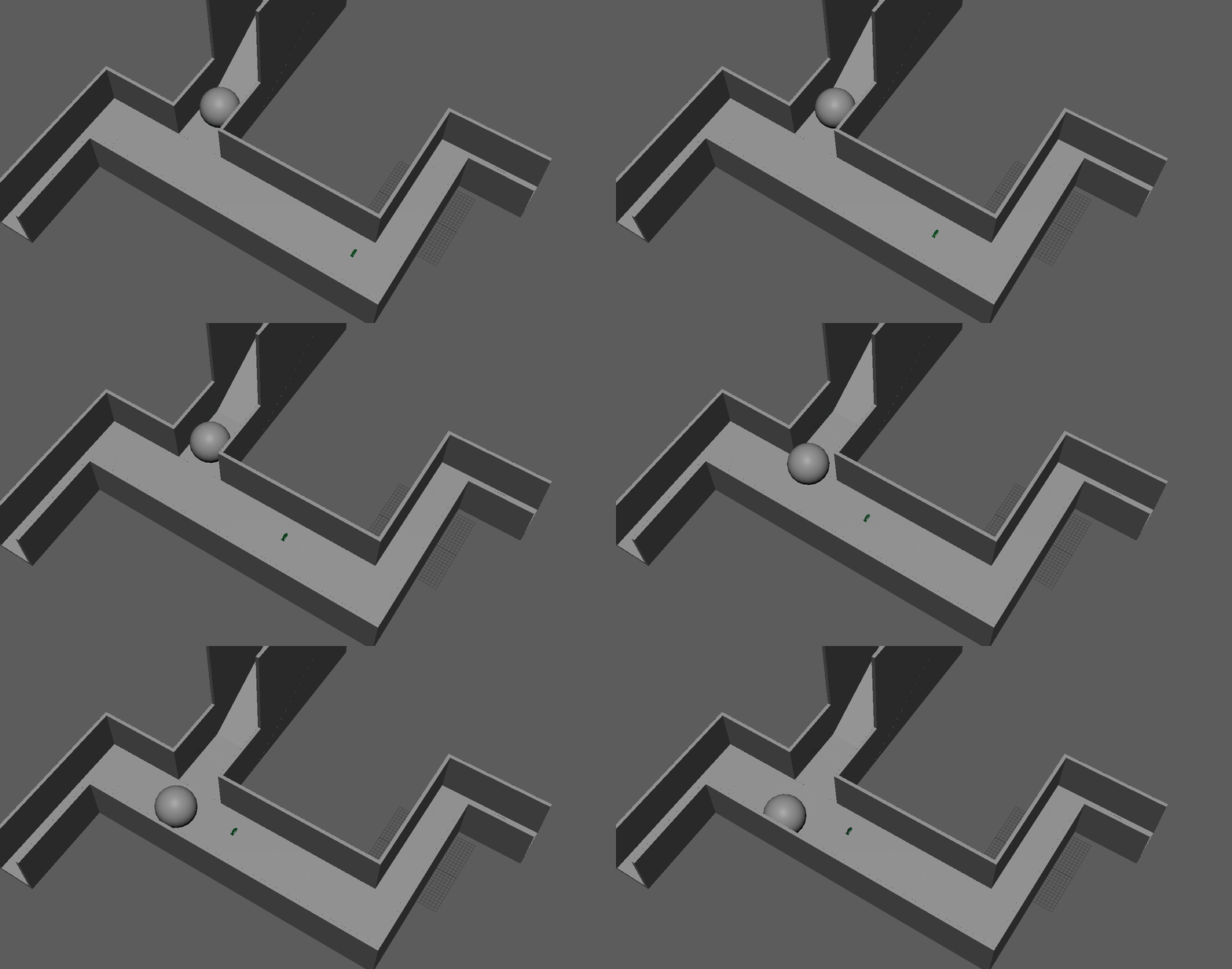
Next, I created the basic animation using keyframes – this was simply moving the camera down the hallway, and having the ball roll across the hallway when the camera got close.
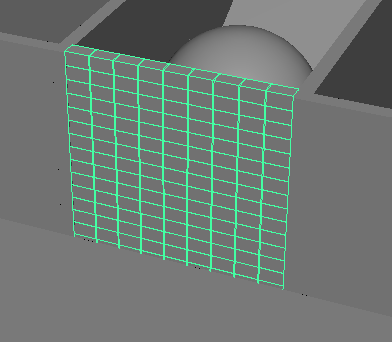
The last, and most important, part of the animation was the MASH wall. I started by creating a single brick-shaped block, which I then turned into a tiled MASH wall by duplicating it sideways and upwards.
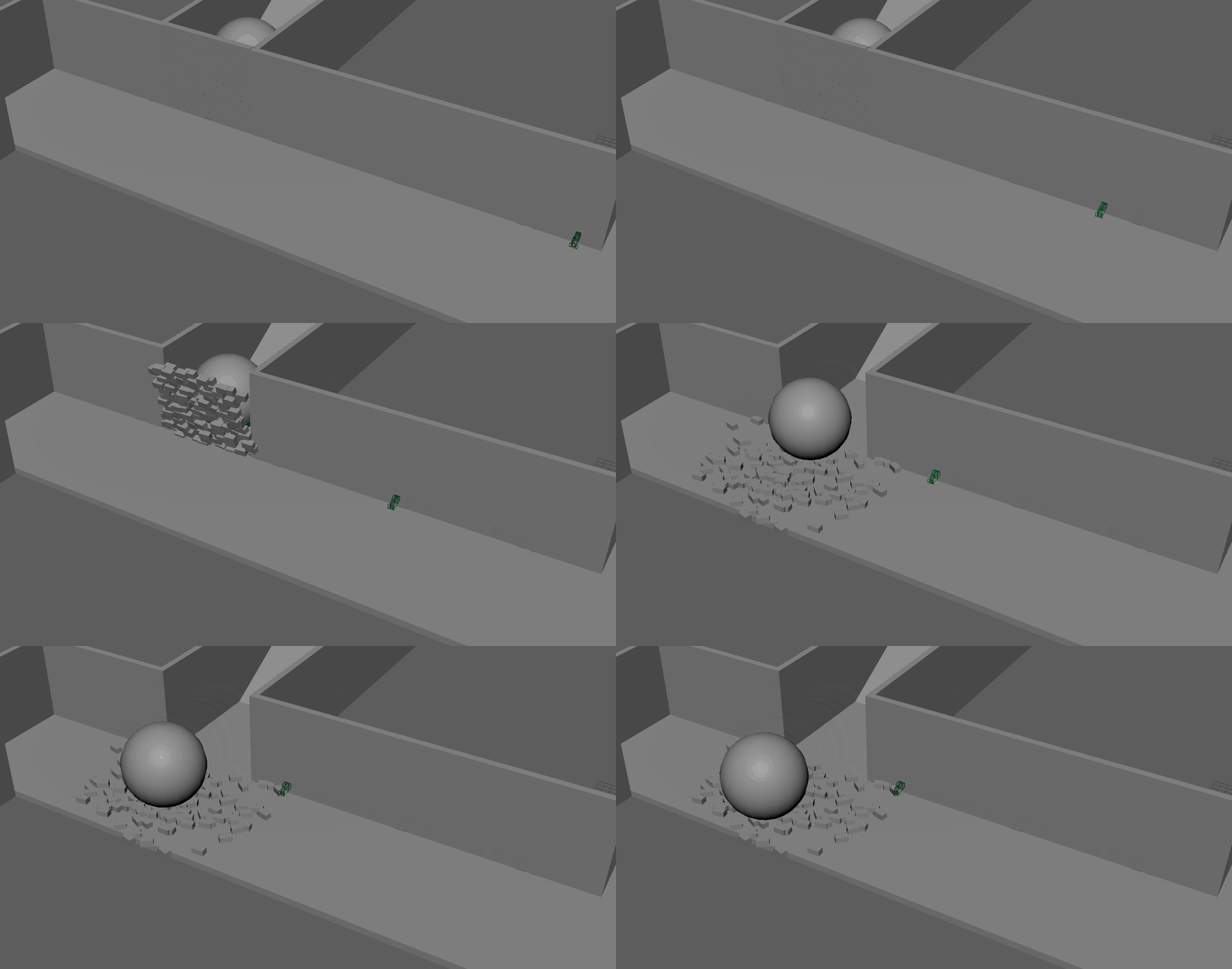
I then animated it by having the entire wall rotate downwards at the same time the ball hit it, as well as moving the position and rotation of each block randomly to make them appear to scatter on the ground as the wall falls.
Finally, I added some lights to the scene and rendered the video.
The idea of a VR 3D video is very interesting, and could have various different possible options for a project to create. I will certainly consider it as an option for my research project.
Week 2 – FrameVR
The second week, we focused on different uses of VR technology. We specifically looked at FrameVR, a website designed to have meetings in virtual reality. It can also be used as a way to display different assets for a variety of uses.
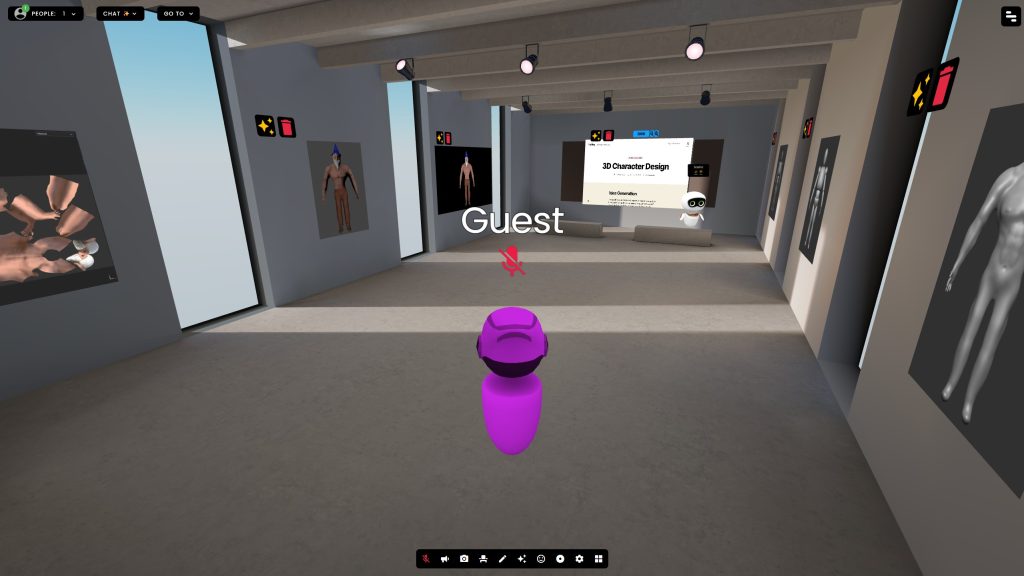
I decided to create a simple display of my 3D character from a previous assignment to try out the website, and see if it had any potential for a kind of immersive portfolio.
While the potential was interesting for a virtual portfolio, I did not think there were many interesting ways to create a project with FrameVR, so I did not go any further with it.
As mentioned in my research project, I decided on creating the first 5 pages of an AR alphabet picture book, with an object for each letter. The objects I decided on creating were:
A is for Apple
B is for Book
C is for Cup
D is for Dice
E is for Egg
I had several other ideas over the course of planning – for example, trying to make all of the options food, such as B for Banana and C for Cherry – however, I couldn’t think of good options for further foods, and felt that it would be too restrictive for ideas. I also considered something like D for Dog, but felt that modelling an animal would be too complex and time consuming, especially if I did something on that level for every item. I decided that the items I have chosen were a good mixture of interesting visually, while being simple enough to be able to model them all within a reasonable time frame.
My goal is to have one QR code at the beginning of the book, which will activate the AR camera through ZapWorks. Then, that camera will be usable on any of the pages to see the AR model. However, I am not certain whether or not this will be viable. I have done some research into the ZapWorks Unity documentation, and cannot find any information about how to have multiple models linked to a single QR code. While I would like to have only one QR code, if I am unable to get the project working with only one, I will instead have a QR code on each page, which will open the ZapWorks project camera for that specific page’s object. This would be more inconvenient for the user than only having a single QR code, but I feel that it would still provide a good proof of concept for the idea.
Modelling
I decided to create the models in Blender, as I have some experience with the software, and had some ideas on how to use it to help make the models I had in mind.
Apple
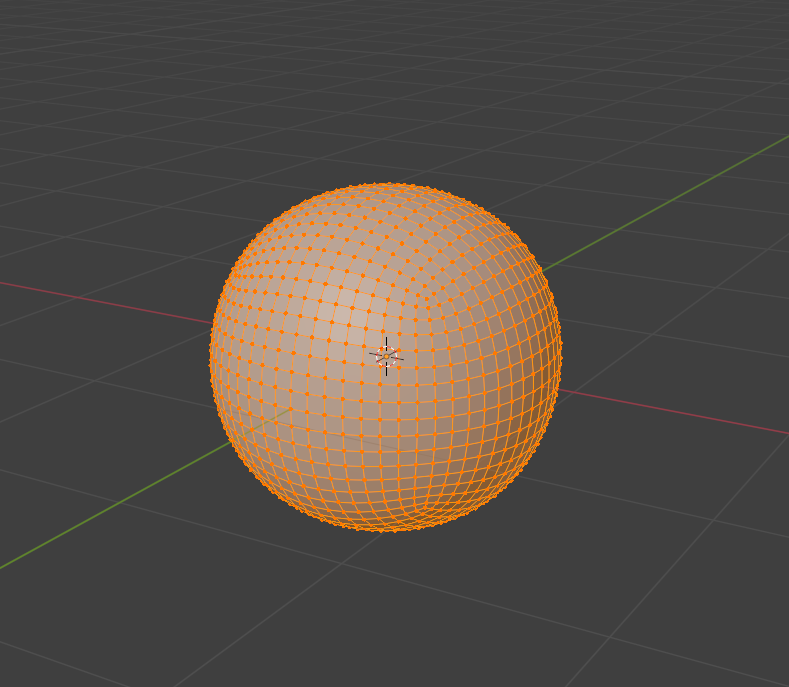
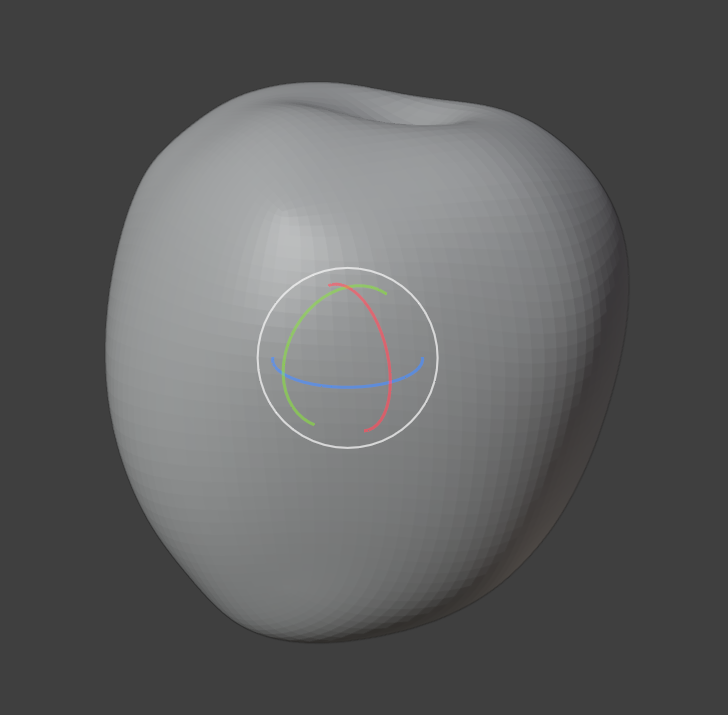
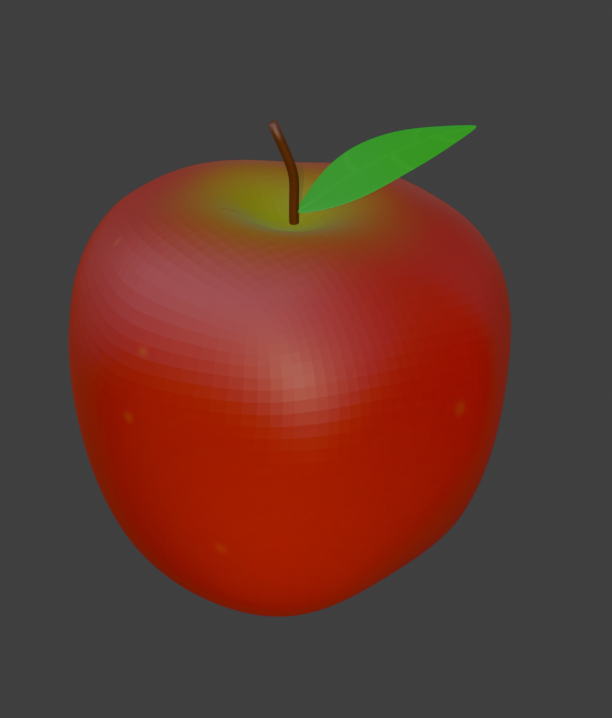
I started with the apple, as I wanted to create the models in the order they would be on the pages. To start, I used the default blender cube, and subdivided it into a more spherical shape.
While I could have simply added in a sphere object, which would have been slightly easier and better for sculpting, it would have been more complicated to UV unwrap, and require retopology. I decided that the model I was making was not going to be detailed enough for the difference to matter, and that I would rather have an easier process texturing than a slightly more detailed sculpt.
I then used the sculpt tool on the sphere to form the shape of the apple, using Blender’s reference system to shape it to the basic shape, then modifying it until it looked better for my more low resolution model.
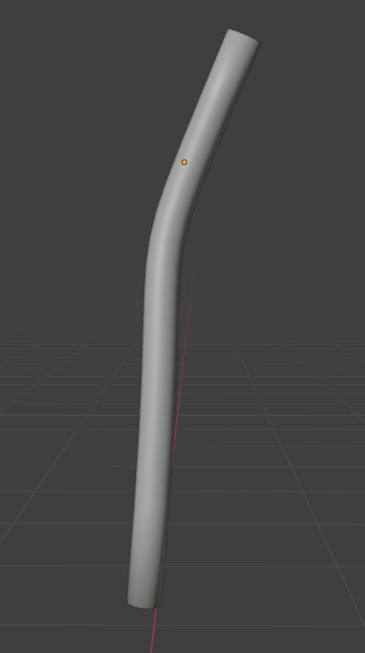
Next, I added the stem. I did this by creating a curve, adjusting it to the correct shape, and then adding a thickness modifier to make it a solid object. I deleted the ends of the newly made cylinder, and refilled them with a face fill so that they were more rounded and fit the topology of the model better.
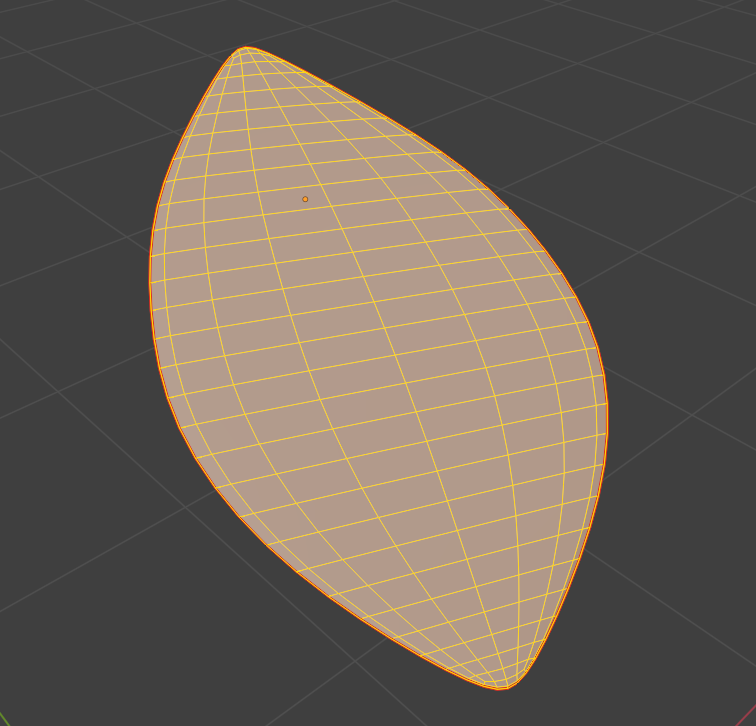
The last part to create was the leaf, which I made by creating a plane, adding some loop cuts to it, and adjusting the edges of the loop cuts to make the shape of the leaf. I then added a very slight thickness modifier, and subdivided it.
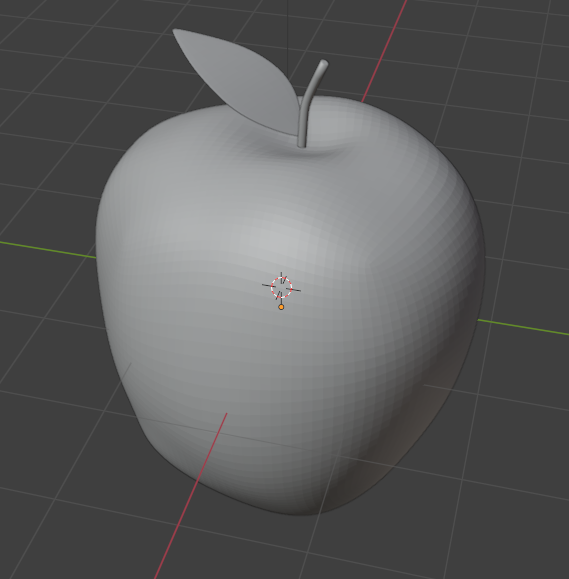
Finally, I positioned all three parts together to create the full model.
Book
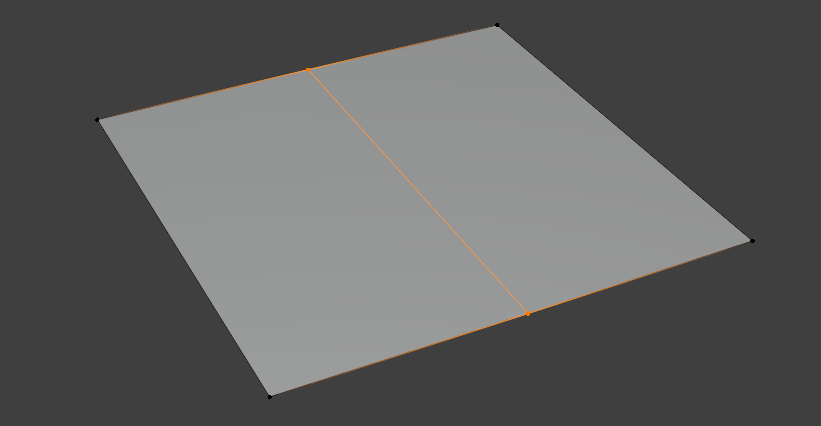
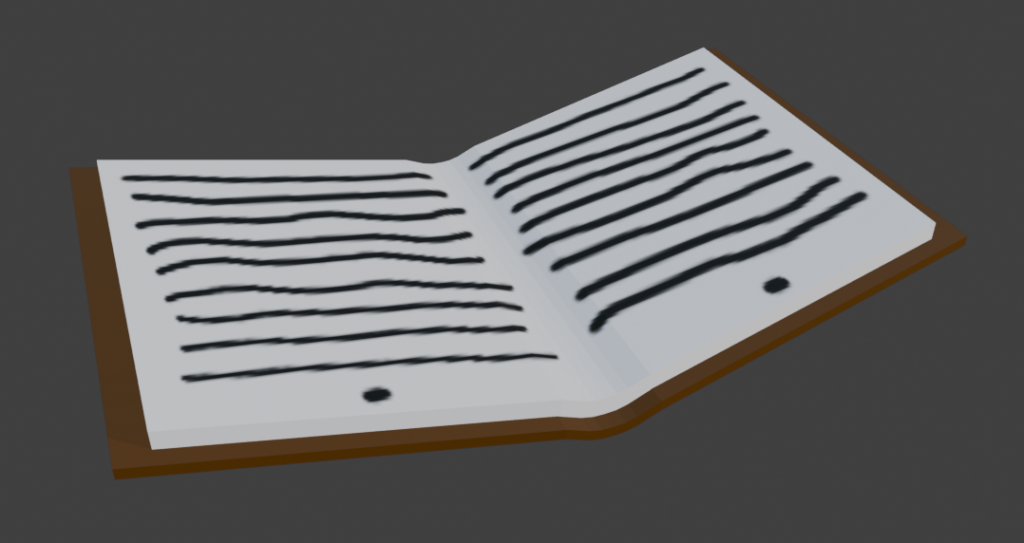
For the book, I began by creating a plane, and splitting it in half.
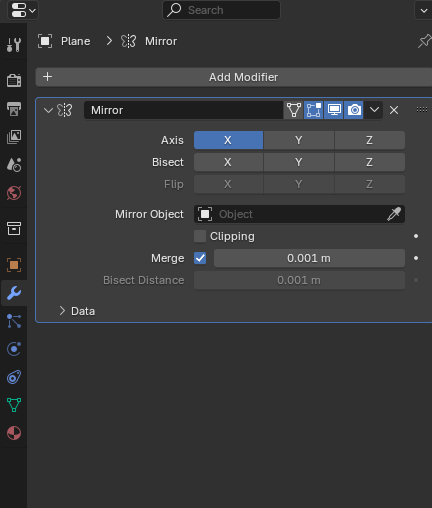
Next, I deleted the left half of the plane, before adding a mirror modifier to it. This meant that any changes I made to the right side would be copied to the left, which would ensure the book was symmetrical, and that I wouldn’t need to model both sides individually.
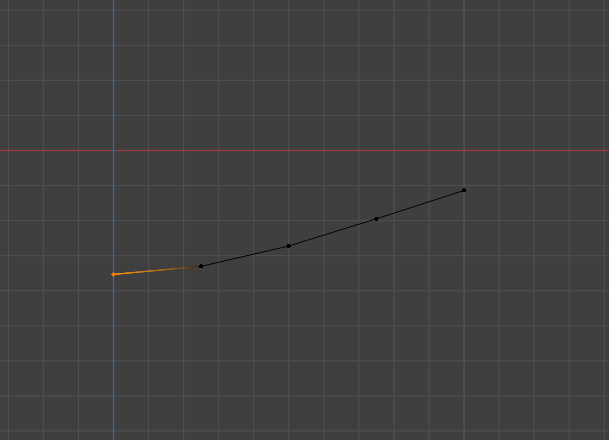
After creating a few more loop cuts, I used the Proportional Editing Falloff setting to make a curve in the plane, which would become the spine of the book.
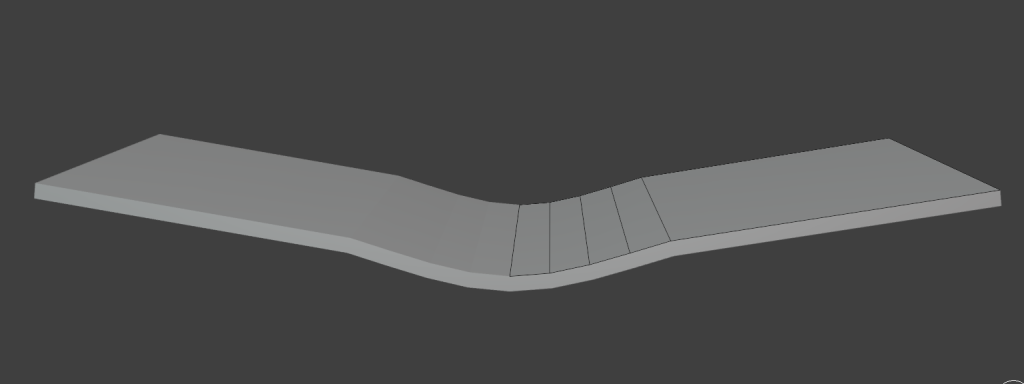
With the spine curve created, I extruded from the edge of the plane in order to make the larger page and cover of the book, and once I had the shape correct, I added a thickness modifier in order to add depth to the book.
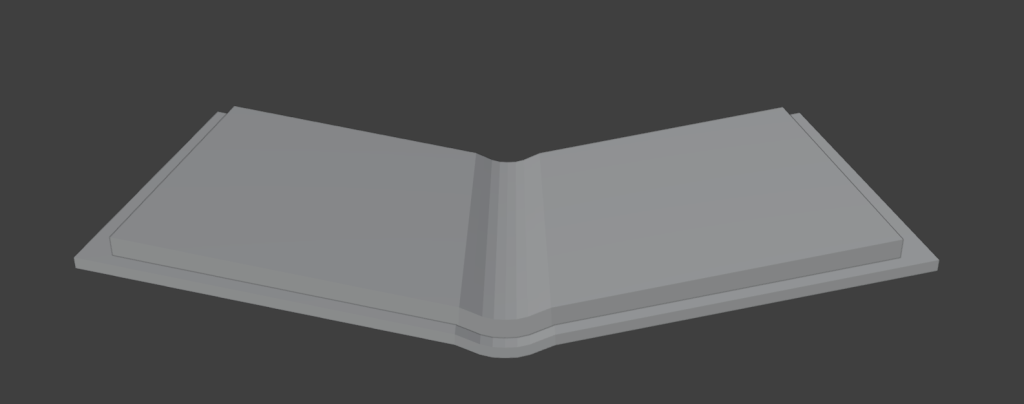
With the cover created, I adjusted the size of the spine and the height of the book until I was happy with it.
Finally, in order to add the pages, I duplicated this object, shrunk it so it would fit within the cover while making it slightly thicker, and moved it upwards.
Cup
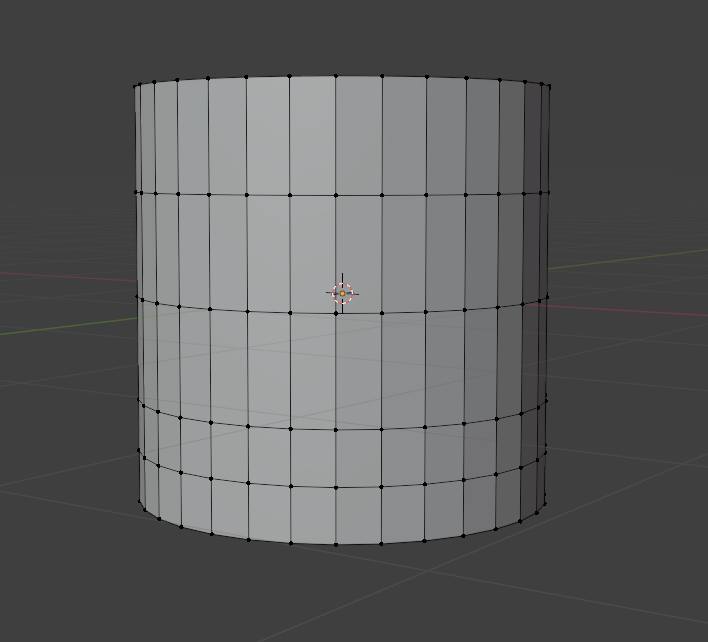
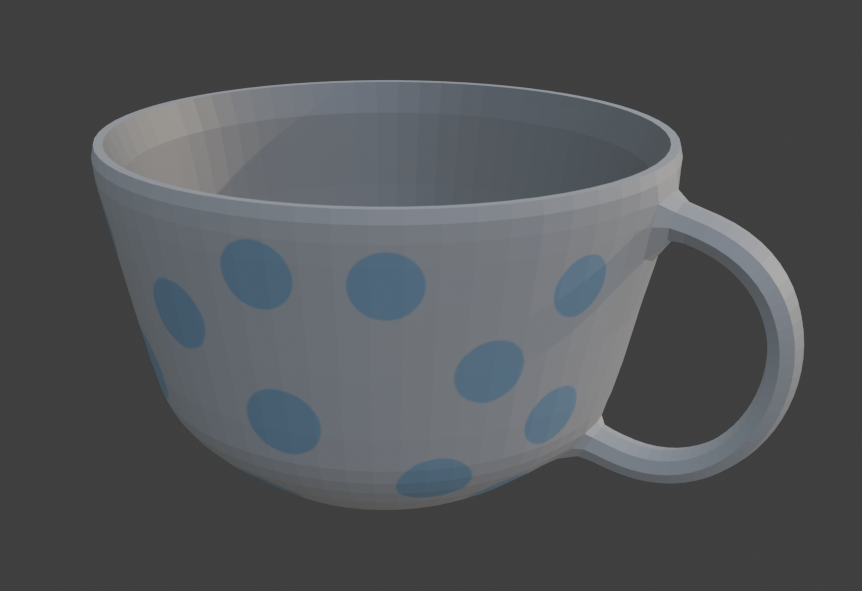
To create the cup, I started by creating a basic cylinder object, and using the loop cut tool to add a few extra edges around the sides.
Then, I resized the different edge loops, adjusting them to different heights to form the general shape of the cup.
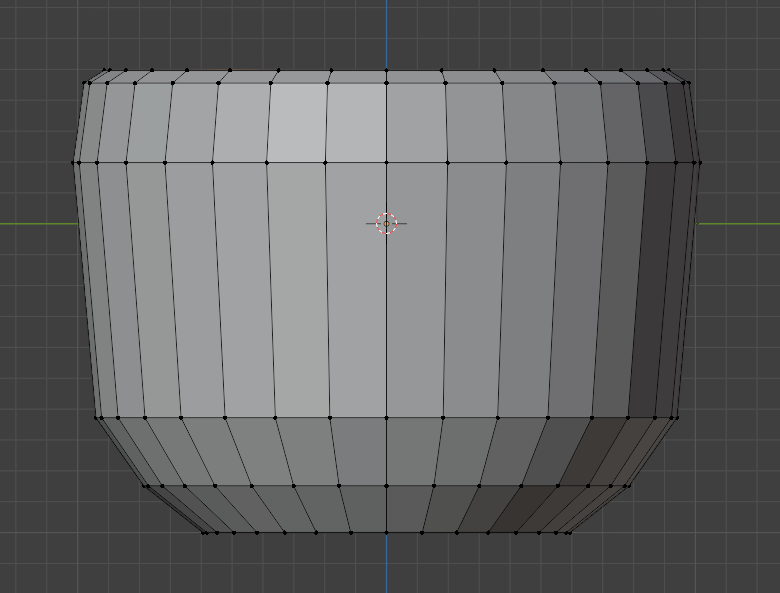
With the shape created, I inserted a face into the top of the cylinder, with a small space around the edge to make the sides of the cup have some thickness. I then extruded the new face downwards into the cup, to hollow it out and create the inside. I resized the face at the bottom and extruded again in order to add a varying level of depth and slope to the inside of the cup.
Then, I refined the shape of the cup by modifying the loop cuts, and adding a few more at the bottom to round it out more. When I was happy with the shape, I cut out a few faces at the top and bottom of one side, and created a bridge between the two for the handle. The last step was to subdivide the model to round it out even more and make it more smooth.
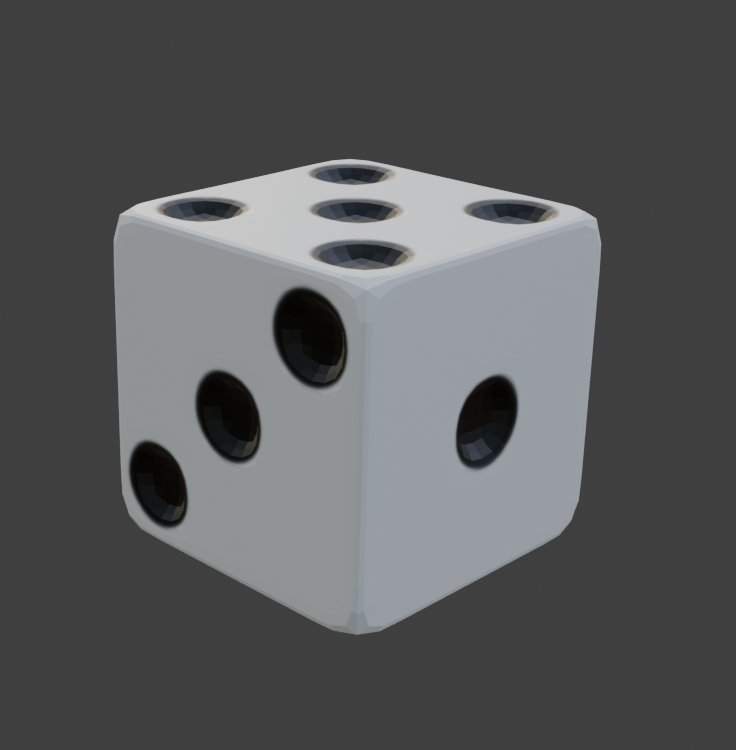
Dice
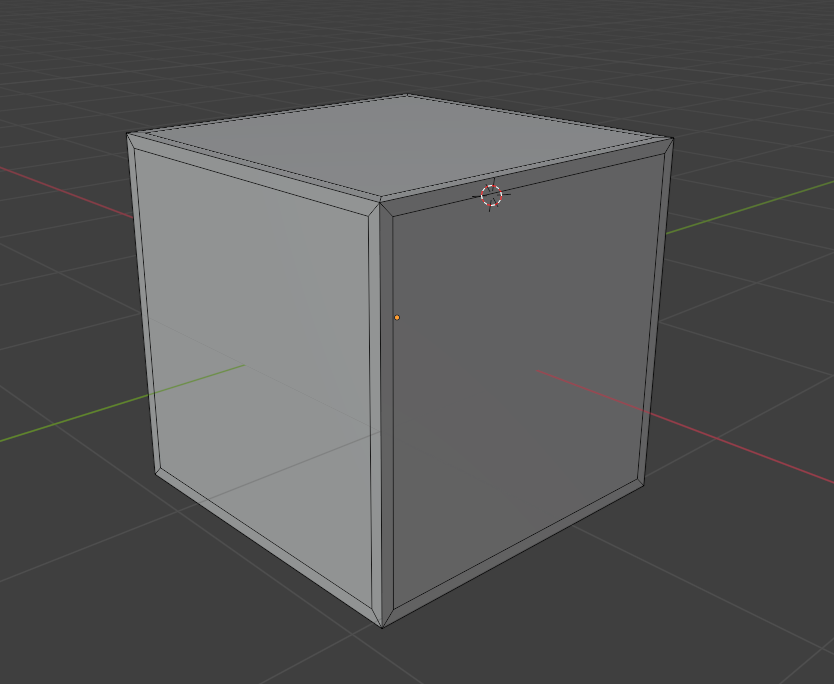
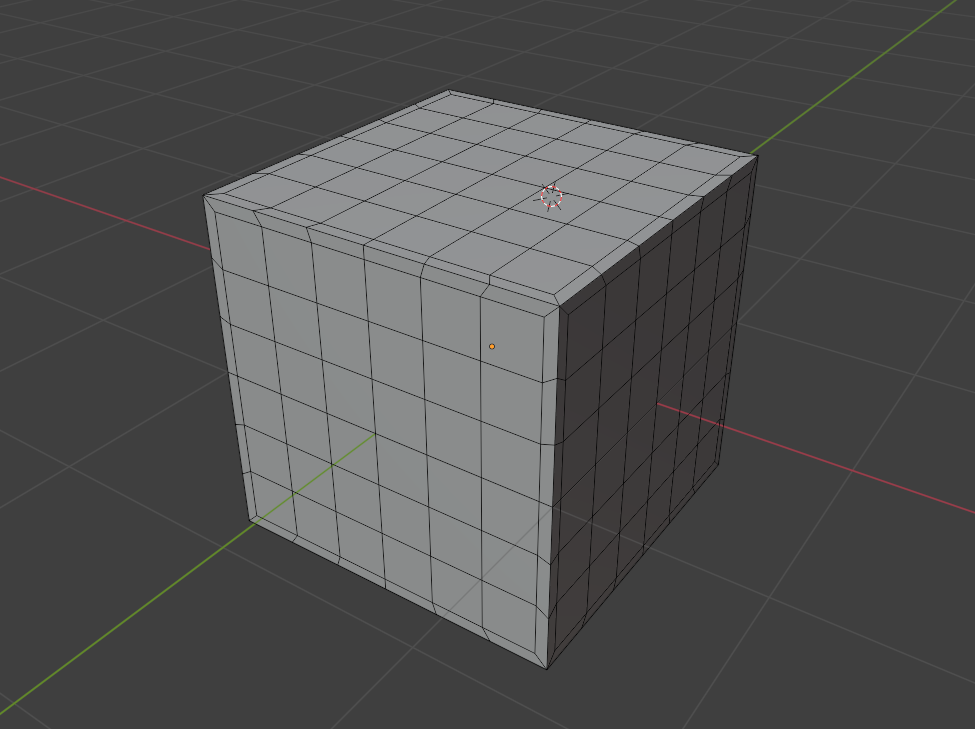
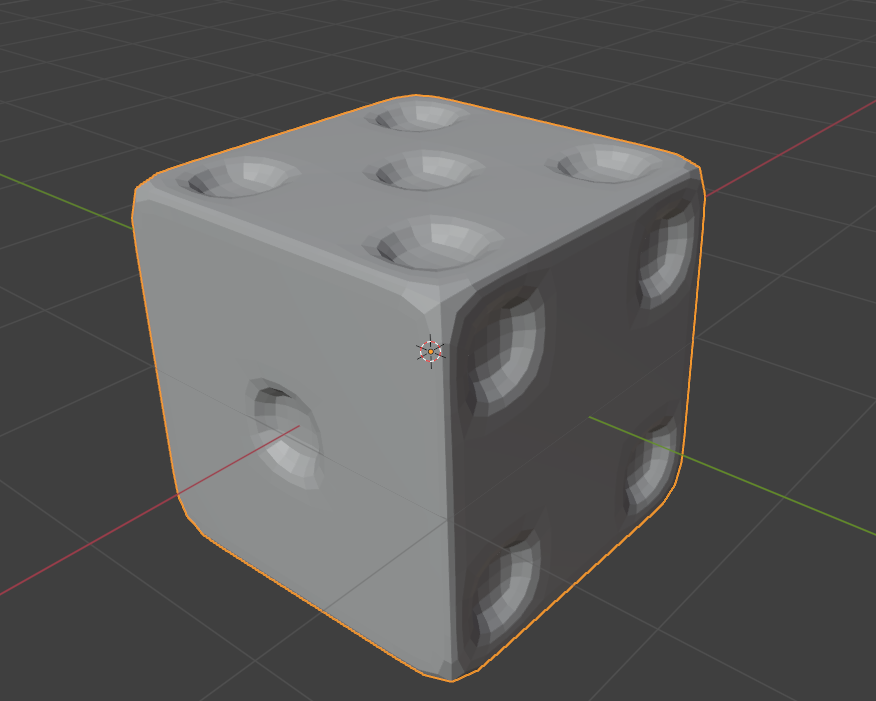
To start, I created a cube, and inserted a face into each side in order to create a small border around the outside of the cube. This meant that when I added the holes in the dice for the numbers, it wouldn’t mess with the shape of the edges when subdividing the model at the end.
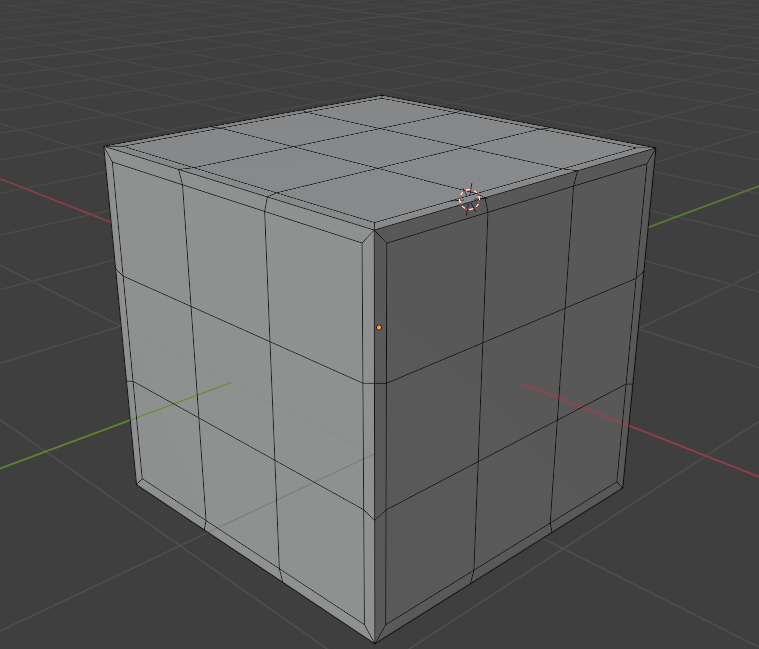
Then, I added more loop cuts in order to divide each side into 9 squares – these would be used to add the dice dots for the numbers.
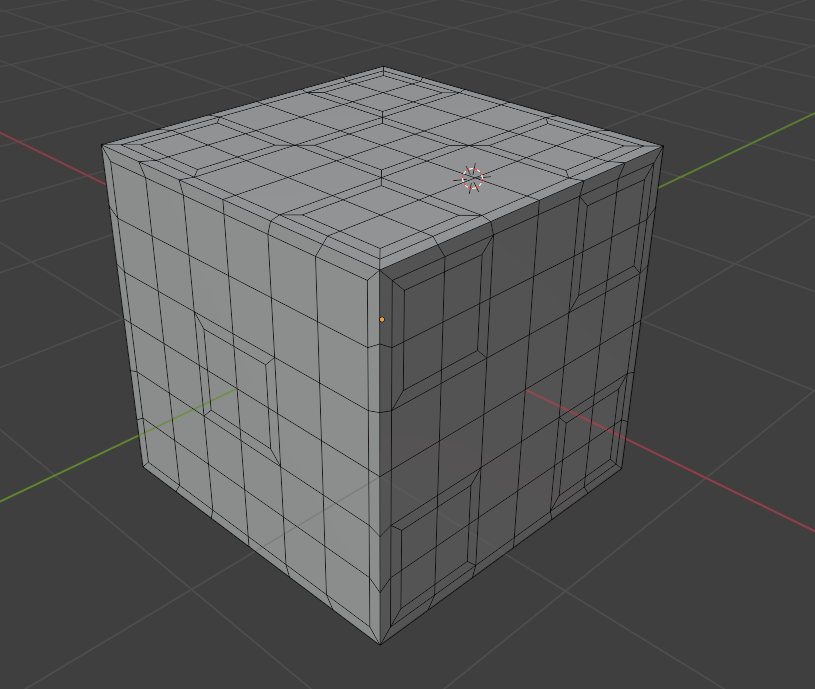
Each of these squares was then further divided into four sections, to create a circular shape for the dice dots.
To start creating the dice dots, I inset faces on each side to lay out where the dots would go – represented by the squares on the dice.
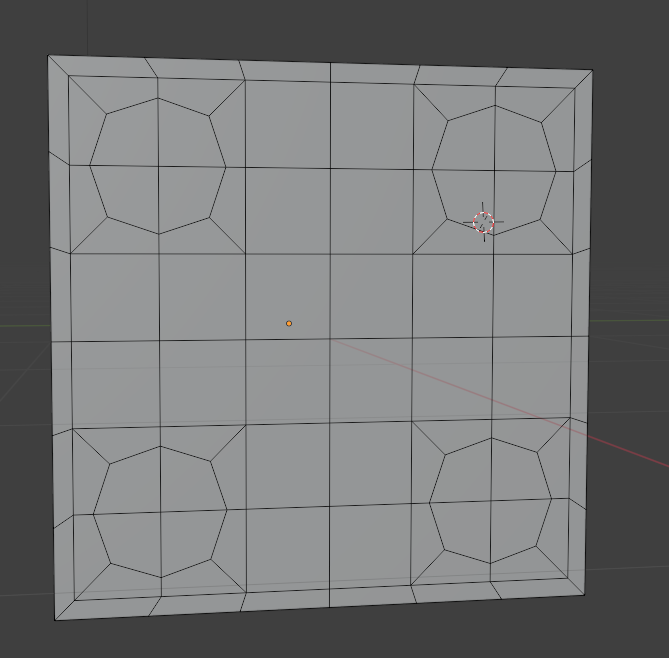
With the spots for the dots laid out, I next rounded them out by adjusting the corners of each of the dice spots to make an octagon shape. When I subdivide the model later, these will become much more rounded, and look much more like the circular dots I am trying to create.
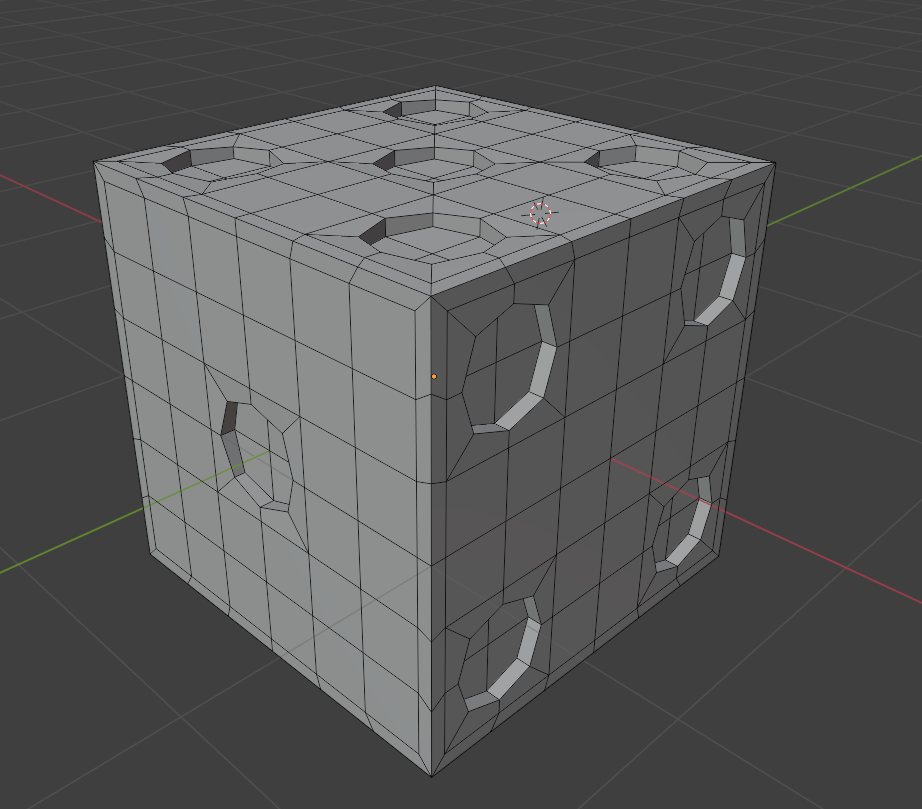
To add depth, I then extruded each of the dots inwards slightly.
Finally, I subdivided the model to round it out.
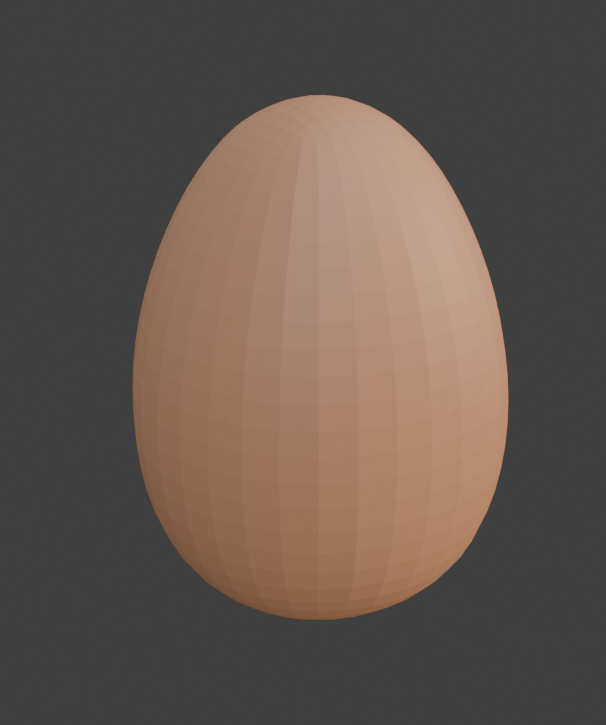
Egg
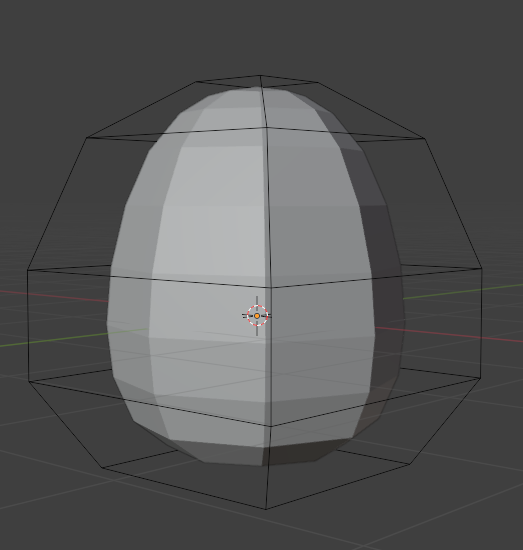
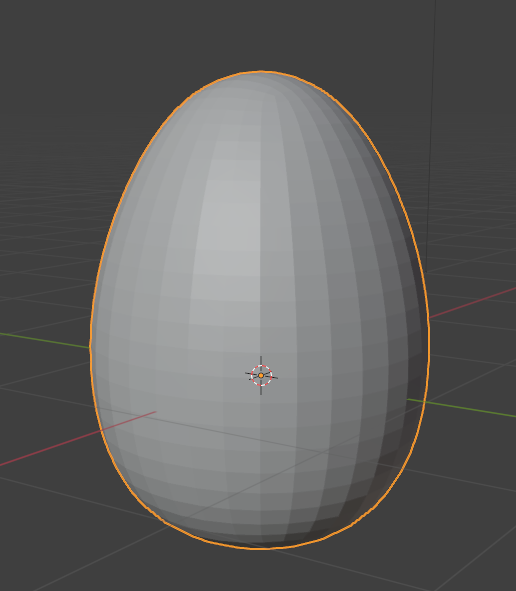
The egg was the simplest model to create. I started by making a cylinder, subdividing it, and adding a few loop cuts, adjusting them similarly to the cup model in order to make the shape of the egg.
After that, all I had to do was subdivide it further to smooth it out.
Texturing
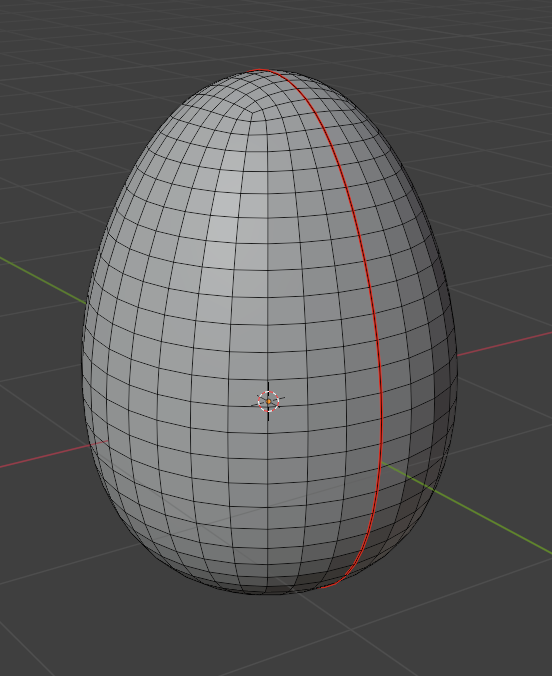
To begin texturing my models, I first needed to UV unwrap them. This would allow me to paint the textures onto the models. To do this, I added a seam around each model, so that they could be properly unwrapped.
Then, with the models unwrapped, I could start on the texturing. This involved painting the textures onto the models, allowing me to colour them in the ways I wanted. I kept the colours simple, mostly just using single colours with slight detailing, such as small spots on the apple and egg, and writing on the book.
The textures are saved as images, which I can import into Unity to add the textures back to the models.
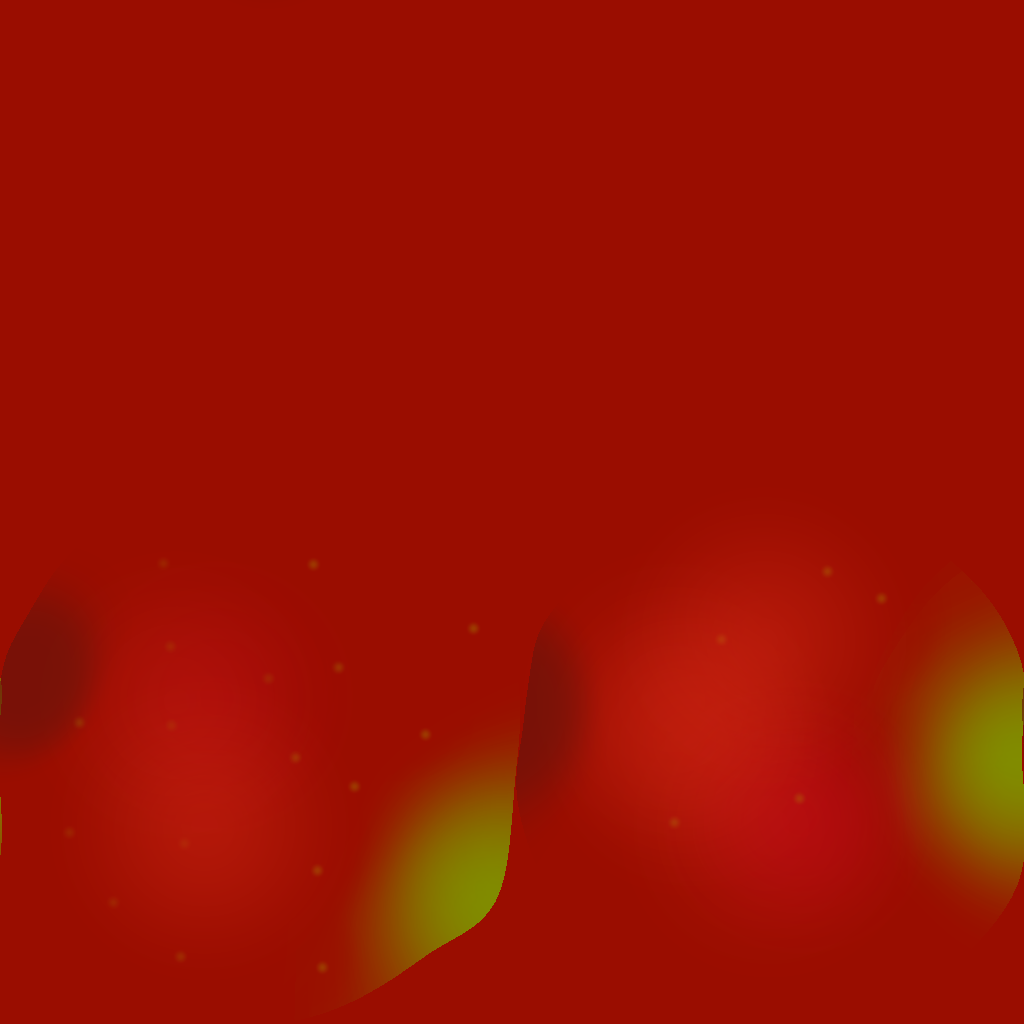
The texture image for the apple, which gets applied to the model.
ZapWorks Unity
Once all of the models were completed, I started to work on setting them up in the ZapWorks Unity project.
First, I did the basic setup for ZapWorks, which I could then use for all of the models. This involved creating a Zappar Camera, and a Zappar Image Tracking Target, which would link together.
With the basic template set up, all I had to do was use the built in Zappar image trainer to add a page as an image, and then link the model to the Image Tracking Target for that page.
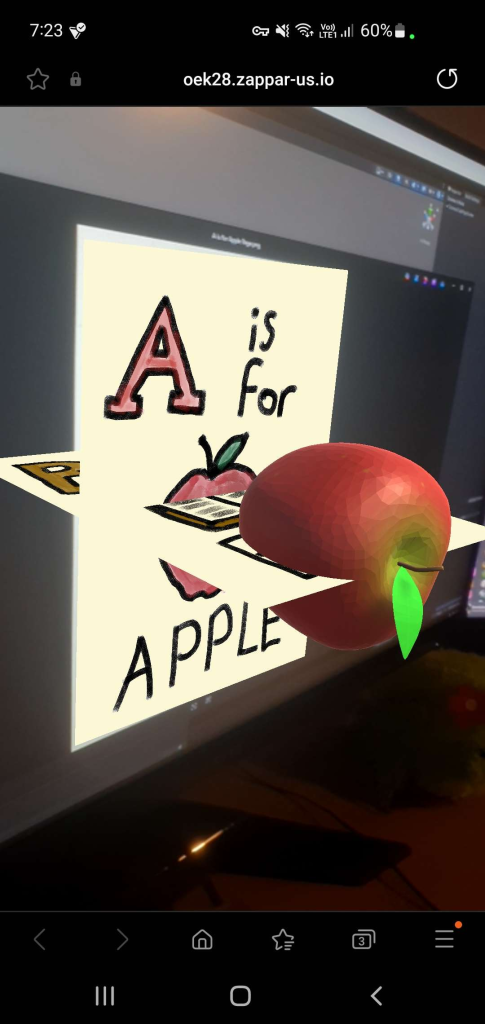
Next, I spent some time trying to figure out how to have multiple different AR image trackers linked to the same QR code. I tried having multiple scenes in a project, but when uploading the project to ZapWorks, only the first scene was used, while the others simply did not have any effect from the AR camera. I also experimented with having multiple image tracking targets and cameras in the same scene, but not only did this lead to strange glitches with the AR models, where different pages and models could be seen, it also made the file size too large to upload to ZapWorks when more than a couple of models were added, as ZapWorks projects can only have a project below 25mb.
An example of what happens when trying to add multiple Zappar Cameras and Image Tracking Targets to a single scene.
After spending a while trying to find a solution, such as lowering the detail of the models and textures to reduce file size, I eventually decided to simply create a separate project and QR code for each model, as I could not find a solution to having all of them linked to the same QR code.
After making all 5 of the scenes in Unity, I uploaded each of them to the ZapWorks site as their own projects. This gave me a QR code for each, which when activated, would open an AR camera for the respective page. The last step for the project was to add these QR codes to their respective pages, to make the experience much easier and more convenient for the user. I also removed the white background from the QR codes so they would blend in better with the page, and not look too out of place.